How to Save Charts on TradingView: Layouts, Templates, and Autosave

A saved chart layout is the difference between opening TradingView and getting back to work versus rebuilding your indicator stack and drawings from scratch every morning. Saving a layout takes one shortcut (Ctrl+S on Windows, Cmd+S on Mac) and gives you a clean way to keep separate setups for different markets, timeframes, and trade plans. This guide walks through saving layouts, saving indicator templates, the autosave setting, the layout limits on each TradingView plan, and the most common questions traders run into.
Key Takeaways
- Layouts save your full chart setup including type, indicators, drawings, timeframe, and color scheme; indicator templates save only the indicators and their settings.
- Press Ctrl+S (Cmd+S on Mac) to save the active layout, then click Manage Layouts to rename, duplicate, or load it back.
- Free accounts get one saved layout, Essential gets five, Plus gets ten, and Premium and Ultimate are unlimited.
From the founder
Once your TradingView setup is saved, the next thing to track is your trades.
The Financial Tech Wiz Trading Journal pulls your fills directly from your broker (Schwab, Fidelity, Webull, IBKR, and 25+ others), so the same workspace you saved on TradingView gets matched to a clean log of entries, exits, P&L, and notes. No more rebuilding a spreadsheet next to your chart.
Layouts vs. templates: what each one stores
Layouts and templates sound interchangeable but they save different things. A layout is the entire workspace: the chart type (candles, Heikin Ashi, bars), every indicator on the chart with its settings, every drawing you have placed, the timeframe, the symbol, and the color scheme. Loading a layout drops all of that back onto the chart in one click.
A template, by contrast, only stores indicators and their settings. Templates are useful when you want the same indicator stack across many symbols. Save your VWAP plus 9 EMA plus 21 EMA plus volume profile combination once, then apply it to any new chart without rebuilding. Drawings, timeframes, and chart type are not included.
The practical split: use layouts when you want to reopen a complete setup later (a trade idea you are working, a multi-pane chart for the open). Use templates when you have an indicator combo you want to reuse across symbols or watchlists.
How to save a chart layout on TradingView
Set up the chart the way you want to keep it. Add your indicators, draw your levels, pick the timeframe and symbol.
Click the Save icon at the top of the chart, or press Ctrl+S on Windows and Cmd+S on Mac. The Save icon is the cloud icon at the right side of the top toolbar. (For more shortcuts like this, see the TradingView keyboard shortcuts reference.)
Type a name for the layout. Use a descriptive name (SPY Daily Setup, 5min Scalp, ES Levels) so you can find it later. Click Save.
If you want autosave to keep the layout updated as you make changes, click the dropdown arrow next to the Save icon and toggle Autosave on. Autosave commits changes every five minutes while autosave is on; when it is off, you have to save manually or your edits are lost on close.
How to load a saved chart layout
Click the dropdown arrow next to the Save icon in the top toolbar. The recently used layouts appear in the menu. Click any of them to load the layout instantly.
To see every saved layout (not just the recently used), click Open Layout. A searchable list of every layout you have saved appears. Click the layout name to load it.
Keyboard alternative: press the period key (.) anywhere on the chart to open the layout switcher.
How to save an indicator template
Apply the indicators you want to save to any chart. Open the Indicators panel and click the Templates dropdown next to the Indicators button (top left of the chart toolbar). Click Save Indicator Template As.
Type a name for the template (Volume Profile + EMAs, RSI Divergence Setup, etc.) and click Save.
To load a saved indicator template later, open the Templates dropdown again and click the template name. The current chart’s indicators are replaced with the saved set.
A subtle but useful detail: indicator templates do not save the chart timeframe or symbol, so the same template works on any chart you switch to.
Autosave: when to leave it on, when to turn it off
Autosave on is the right default for most traders: TradingView commits changes to the active layout every five minutes, so your drawings, indicator tweaks, and panel adjustments stay with the layout even if the browser crashes.
Autosave off is the right setting if you use a layout as a stable reference (a master template you do not want to mutate during the trading session). Turn autosave off, make whatever in-session adjustments you want, and only manually save when you want to lock the changes in.
The toggle lives under the dropdown arrow next to the cloud Save icon. The label switches between Autosave: On and Autosave: Off.
How many layouts and templates can you save? (limits per plan)
TradingView caps the number of saved layouts based on your plan. The current limits as of 2026:
| Plan | Saved Layouts | Charts per Tab | Indicators per Chart |
|---|---|---|---|
| Free | 1 | 1 | 3 |
| Essential | 5 | 2 | 5 |
| Plus | 10 | 4 | 10 |
| Premium | Unlimited | 8 | 25 |
| Ultimate | Unlimited | 16 | 50 |
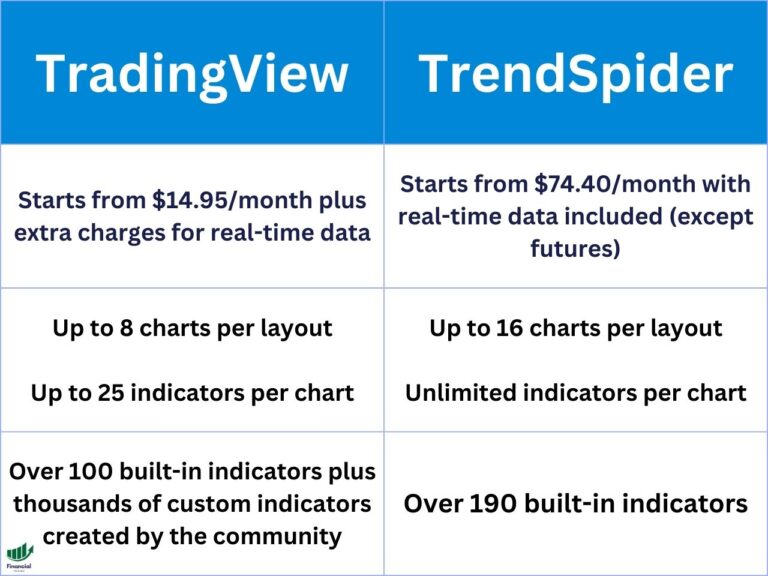
If you trade multiple markets (stocks, futures, options, crypto) on different timeframes, the Free single-layout limit gets restrictive fast. Essential at five layouts is enough for a single-account trader running a few setups. Premium is the practical jump if you keep more than ten distinct setups, since you stop having to delete old layouts to save new ones. Compare the full feature differences in the TradingView pricing guide.
If you are bumping into the layout limit on the Free or Essential plans, the TradingView discount link is the same path the original post used; the upgrade math just works out for active traders.
Get Your Free Trading Resources
Grab the free trading journal template plus the same tools we use to stay organized, consistent, and objective.
- Free trading journal template
- Custom indicators, watchlists, and scanners
- Access our free trading community
Enter your email below to get instant access.
No spam. Unsubscribe anytime.
Exporting chart data as CSV
Saving a layout keeps your visual setup. Exporting chart data is different: you pull the actual price bars off the chart so you can analyze them in a spreadsheet or model.
Click the dropdown arrow at the top of the chart, click Export Chart Data, and click Export. TradingView gives you a CSV with the OHLC values plus indicator values for the visible range. Useful for backtesting an idea outside TradingView or feeding the data into a spreadsheet.
If you are tracking the trades you take from these saved setups, that CSV pairs naturally with a structured trade log. The free trading journal template is a clean Google Sheet you can drop entries into; the Financial Tech Wiz Trading Journal automates the whole pipeline by pulling fills from your broker.
Common saving issues and fixes
“Your chart is too large and cannot be saved” appears when a layout has too many indicators, drawings, or chart panes for TradingView’s storage limit per layout. The fix is to remove unused drawings, delete duplicate indicators, or split the workspace into two layouts.
If your changes are not persisting between sessions, check whether autosave is on. With autosave off, every edit needs a manual save (Ctrl+S) or it is gone on close.
If you do not see all your layouts in the dropdown, click Open Layout (the dropdown only shows recently used). Every layout you have ever saved is there.
If you want to remove old layouts to make room under your plan limit, see the guide on how to delete TradingView layouts.
Frequently Asked Questions
How do I save a chart on TradingView quickly?
Press Ctrl+S on Windows or Cmd+S on Mac to save the active chart layout. You can also click the cloud Save icon at the top right of the chart toolbar.
What is the difference between a layout and a template on TradingView?
A layout saves the entire workspace (chart type, timeframe, symbol, drawings, indicators, color scheme). A template saves only the indicators and their settings. Use layouts to restore a complete setup; use templates to apply the same indicator combination across multiple symbols.
Does TradingView have autosave?
Yes. Click the dropdown arrow next to the Save icon and toggle Autosave on. Autosave commits chart changes every five minutes. With autosave off, every edit must be manually saved or it is lost on close.
How many chart layouts can I save on TradingView?
The Free plan allows 1 saved layout, Essential allows 5, Plus allows 10, and Premium and Ultimate allow unlimited saved layouts. Indicator templates have separate limits but follow a similar plan ladder.
Why does TradingView say my chart is too large to save?
The “your chart is too large and cannot be saved” error fires when one layout has too many indicators, drawings, or panes for TradingView’s per-layout storage limit. Remove unused drawings, delete duplicate indicators, or split the workspace into two layouts.
Can I save a TradingView chart for offline use?
No. TradingView is a web-based platform and requires an active connection to load saved layouts. The closest workaround is taking a screenshot of the chart using the camera icon at the top right of the chart toolbar.
How do I share a saved chart layout with someone else?
TradingView does not support direct layout sharing between accounts on the standard plans. The closest option is to take a snapshot (camera icon) and share the image, or use the publish-idea feature to post the chart in TradingView’s social feed.
Get Your Free Trading Resources
Grab the free trading journal template plus the same tools we use to stay organized, consistent, and objective.
- Free trading journal template
- Custom indicators, watchlists, and scanners
- Access our free trading community
Enter your email below to get instant access.
No spam. Unsubscribe anytime.