thinkorswim Trading Journal: Connect Your Account and Analyze Every Trade

The Financial Tech Wiz Trading Journal connects directly to thinkorSwim through Schwab’s brokerage connection, pulling your stocks, options, and futures trades automatically. Whether you are running defined-risk spreads, scalping futures, or swing trading equities through thinkorSwim, the journal layers analytics and AI insights on top of your actual trade history.
Key Takeaways
- Import your Schwab / thinkorSwim trades into the Financial Tech Wiz Trading Journal in minutes using SnapTrade
- Stocks, options, and futures all import with no manual data entry
- Use the CSV import method to load your complete thinkorSwim trade history going back years
Recommended Tool
Financial Tech Wiz Trading Journal
See which options strategies in your thinkorSwim history are actually profitable. Benchmark your equity curve against the S&P 500 and track drawdown across every strategy you run. Starting at $9.91/month billed annually.
Try It FreeHow to Connect thinkorSwim to the Financial Tech Wiz Trading Journal
The primary import method is SnapTrade, which connects your Schwab account and pulls your trade history in one batch. thinkorSwim trades execute through your Schwab brokerage account, so connecting Schwab in the portal brings in everything you trade through thinkorSwim. If you use multiple accounts in the journal, set the account you want to import into as your default before starting. Accounts are managed from the top bar.
- Log into journal.financialtechwiz.com
- Go to the Trades tab and click Import from Broker
- Select SnapTrade
- Click “Connect Brokerage” to open the SnapTrade connection portal
- Select Schwab from the broker list
- Log in with your Schwab credentials securely through SnapTrade
- Once connected, click “Sync Trades” to import your trade history
- Select a date range if you want to limit the import to a specific period
- Review the imported trades and edit individual entries if needed
The SnapTrade import pulls your full trade history in one batch. It is not an ongoing sync. For new trades going forward, log them manually in the journal, or return to the Trades tab and run a new SnapTrade import selecting a date range covering your recent activity. To do a clean full re-import, go to Settings, clear your trade data, and re-run the SnapTrade import.
What You Can Do With Your thinkorSwim Data
thinkorSwim is built for active traders, and the Financial Tech Wiz Trading Journal gives your trade history the analytical depth that thinkorSwim’s built-in reporting does not cover.
For options traders, the journal tracks your P&L by strategy type, win rate by expiration length, and performance across different underlying symbols. If you are running iron condors, credit spreads, or naked options through thinkorSwim, the journal shows you which structures are actually profitable over time versus which ones look good on individual trades but bleed out across a larger sample.
For futures traders, thinkorSwim is one of the most capable platforms for CME Group contracts. The journal tracks your futures trades separately so you can analyze your /ES, /NQ, /MNQ, or /MES performance in isolation or alongside your equity and options book.
For stock and ETF traders, the journal builds an equity curve from your thinkorSwim history, measures your performance against the S&P 500, and identifies patterns in your win rate by time of day, day of week, and hold duration. Most active traders using thinkorSwim have years of history. The journal makes that history usable for improvement rather than just a record.
AI insights review your complete thinkorSwim trade log and surface patterns that are hard to see manually, including your highest-probability setups, your worst drawdown periods, and where your exits are leaving the most money behind. You can benchmark your equity curve against the S&P 500, track drawdown across your full thinkorSwim history, and break performance down by symbol and options strategy type.
For a broader comparison of trading journals that support thinkorSwim, see our best trading journals guide.
Import Your Full thinkorSwim Trade History via CSV
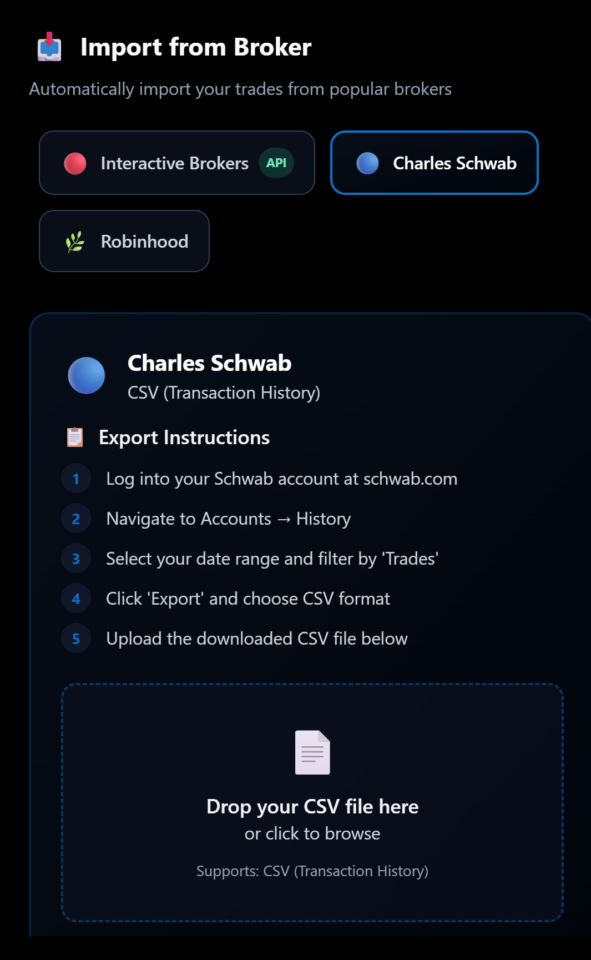
SnapTrade imports your Schwab trade history in one batch, but if you want to load years of historical thinkorSwim data from before your SnapTrade connection date, the CSV export covers that. This is the recommended approach for traders who want their complete history in the journal from the start.
Export from thinkorSwim / Schwab:
- Log into your Schwab account at schwab.com
- Navigate to Accounts, then select History
- Set your date range and filter by Trades
- Click Export and choose CSV format
- Save the file to your computer
You can also export directly from the thinkorSwim desktop application via the Monitor tab, then Account Statements, selecting your date range and exporting to file.
Import into the journal:
- Go to the Trades tab in the journal
- Click Import from Broker and select Charles Schwab from the list
- Upload the CSV file you downloaded
Run the CSV import to load your full history, then use SnapTrade to import new batches of trades going forward. The two methods work together and do not create duplicate entries when used in sequence.
Recommended Tool
Financial Tech Wiz Trading Journal
Built for thinkorSwim traders across stocks, options, and futures. Win rate by strategy, equity curve, drawdown analysis, and AI insights from your complete Schwab trade history. Starting at $9.91/month billed annually.
Try It FreeFrequently Asked Questions
Is there a trading journal for thinkorSwim?
Yes. The Financial Tech Wiz Trading Journal connects to thinkorSwim through the Schwab brokerage connection via SnapTrade. Stocks, options, and futures trades all import into the journal. You can also load historical trade data via CSV export from the Schwab account history page or directly from the thinkorSwim desktop application.
Does the thinkorSwim trading journal support options and futures?
Yes. Options trades and futures contracts import alongside your stock positions. The journal tracks each asset class separately and provides a combined performance view across your entire thinkorSwim account. You can filter analytics by instrument type to focus on options-only or futures-only performance.
How does the SnapTrade import connect to thinkorSwim?
thinkorSwim is Schwab’s active trading platform. All trades placed through thinkorSwim execute inside your Schwab brokerage account. Connecting Schwab via SnapTrade pulls your full trade history in one batch — it is not an ongoing sync. There is no separate thinkorSwim connection needed. For new trades going forward, log them manually or run a new SnapTrade import from the Trades tab with a date range covering your recent activity.
Can I import my complete thinkorSwim trade history?
Yes. Use the CSV export from Schwab’s account history page or from the thinkorSwim Monitor tab to download your full trade history, then upload it to the journal. Run the CSV import first for historical data, then use SnapTrade to import new batches of trades going forward.
What analytics does the journal provide for thinkorSwim traders?
The journal generates win rate, profit factor, average gain and loss, equity curve, drawdown analysis, performance by symbol, and P&L by options strategy type. AI insights analyze your full thinkorSwim history and surface patterns across thousands of trades that manual review cannot realistically find. You can benchmark your performance against the S&P 500 and other major indices, track drawdown across your full history, and break results down by symbol and strategy.
Get Your Free Trading Resources
Grab the free trading journal template plus the same tools we use to stay organized, consistent, and objective.
- Free trading journal template
- Custom indicators, watchlists, and scanners
- Access our free trading community
Enter your email below to get instant access.
No spam. Unsubscribe anytime.