How to Zoom In and Out on TradingView: Shortcuts, Mac, Mobile (2026)

If your TradingView chart is stuck zoomed in or you want a wider view of price action, the fastest fix is the keyboard shortcut: hold Ctrl on Windows or Cmd on Mac and scroll your mouse wheel down. The same shortcut zooms in when you scroll up. Below are five reliable ways to zoom in and out on TradingView, plus the reset shortcut for when the chart will not snap back. If you are new to the platform, the TradingView beginner tutorial covers the rest of the chart interface.
Key Takeaways
- Ctrl + mouse wheel (Windows) or Cmd + mouse wheel (Mac) is the fastest zoom shortcut on the desktop chart.
- Alt + R (Windows) or Option + R (Mac) resets the chart view if zoom gets stuck.
- On the TradingView mobile app, pinch with two fingers on the chart to zoom in and out.
Recommended Tool
Financial Tech Wiz Trading Journal
Track every trade you take from a TradingView chart, tag the setup that triggered it, and let the analytics show you which patterns actually pay. Auto sync with 25+ brokers, AI insights, and equity curve vs benchmark. Starting at $9.91/month billed annually.
Try It FreeMethod 1: The Keyboard Shortcut (Fastest)
The fastest way to zoom on a TradingView chart is the modifier-key shortcut. Hover the cursor over the area you want to focus on, hold the platform modifier, and scroll the mouse wheel. The chart zooms toward the cursor position, so place the cursor over the candle or price level you want to inspect before scrolling. This is the workflow most active traders use because it does not require taking the hand off the mouse.
| Action | Windows | Mac |
|---|---|---|
| Zoom in | Ctrl + scroll up | Cmd + scroll up |
| Zoom out | Ctrl + scroll down | Cmd + scroll down |
| Reset chart view | Alt + R | Option + R |
| Zoom toolbar | Click the magnifier icon on the left toolbar |
For the full keyboard shortcut reference, see the TradingView shortcuts cheat sheet.
Method 2: The Mouse Wheel Alone (No Modifier)
Scrolling the mouse wheel without holding any modifier key does not zoom the chart. Instead, it pans horizontally through chart history, moving forward or backward in time. This trips up many users who expect it to zoom: if you want to zoom, you must hold Ctrl (Windows) or Cmd (Mac) while scrolling. The unmodified scroll wheel is useful for navigating to a specific date range before applying the zoom shortcut.
Method 3: The Zoom Tool on the Left Toolbar
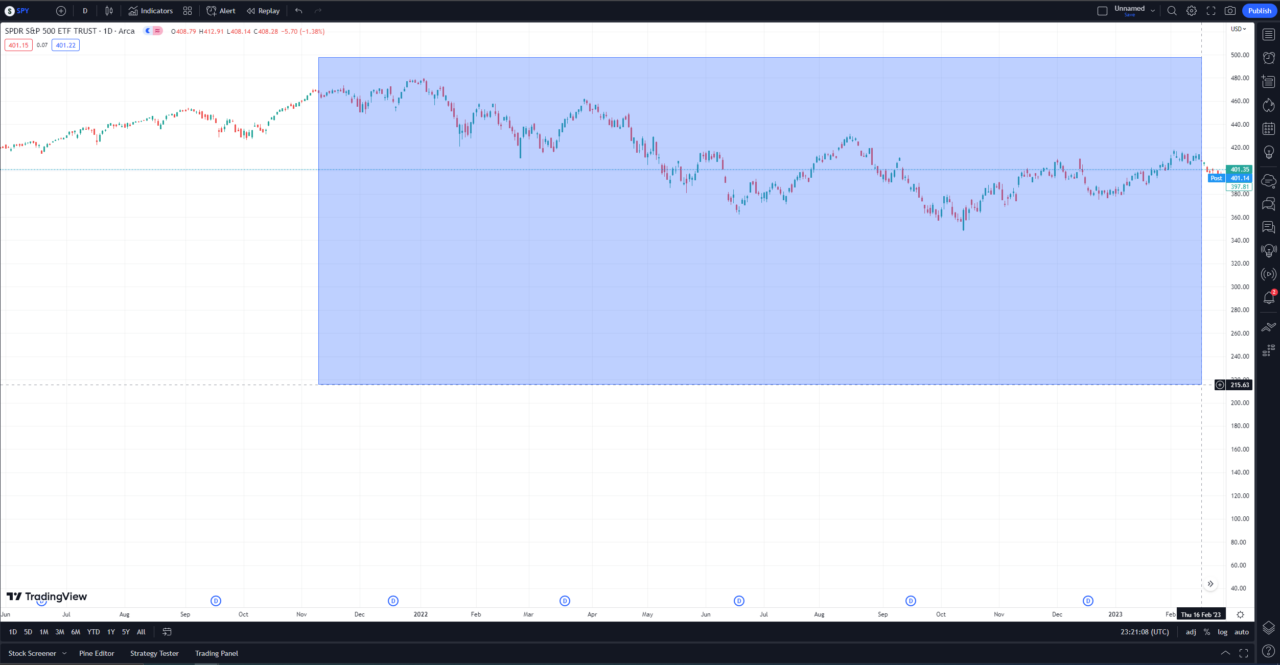
The TradingView zoom tool is accessible from the main toolbar on the left side of the chart. Select the magnifying glass with a plus icon to activate it, then click and drag on the chart to select a region to enlarge. After zooming in using this tool, a zoom-out icon appears in the toolbar. Click it to revert the chart back to its previous view. Note that the zoom-out icon only appears after a zoom-in action has been performed with this tool. This method gives precise control over exactly which price and time region you want to expand.
Method 4: Manually Scaling the Price and Time Axes
You can scale each chart axis independently by hovering the cursor directly over it. On the price axis on the right, an up-and-down arrow cursor appears when you hover. Click and drag up to compress the price scale or drag down to expand it. The same works on the time axis at the bottom. This method is the only way to compress one axis without affecting the other, which is useful when you want to compress the time axis to see more candles without changing the price scale. It provides granular control that the keyboard shortcut does not.
Method 5: Pinch Zoom on the TradingView Mobile App
The TradingView mobile app for iOS and Android uses standard touchscreen gestures. Place two fingers on the chart and pinch them together to zoom out, or spread them apart to zoom in. A single-finger drag pans the chart through history. Pinch zoom is responsive on both phones and tablets and does not require any settings change. The pinch gesture is one of several mobile-only behaviors covered in the TradingView mobile app guide.
How to Reset a Stuck TradingView Chart Zoom
If the chart will not zoom back out using the standard shortcuts, three things usually fix it. First, press Alt + R on Windows or Option + R on Mac to reset the chart view to defaults. Second, right-click any empty area of the chart and select Reset Chart from the context menu. Third, if the price axis is locked too tight, double-click the price axis on the right side of the chart to auto-fit the visible candles. One of these three almost always recovers a stuck view without needing to refresh the browser tab.
Financial Tech Wiz / Free resources
Build a clearer picture of your trading.
Start with the free trading journal template. Keep your trades organized, review your results, and build a consistent review routine.
- Free Google Sheets and Excel trading journal template
- Indicators, watchlists, and scanners
- Access to the free trading community
Ready for automatic trade tracking? Explore the Financial Tech Wiz Trading Journal.
Free resources + trading emails. Unsubscribe anytime.
Get a TradingView Discount
If you sign up for TradingView using this link, new users can take advantage of a 30-day free trial and enjoy all the platform’s premium features. You will also receive a discount on your TradingView subscription when the trial ends.
Final Word
Zoom shortcuts on TradingView are about workflow speed: the keyboard shortcut for daily use, pinch on mobile for review on the go, and the reset shortcut when the chart fights you. Memorize those three and the rest of the chart navigation falls into place. If you want to track every TradingView trade and tag the chart setup that triggered it, the Financial Tech Wiz Trading Journal imports trades from 25+ supported brokers and runs the analytics for you.
Before You Go
Pair this with the free trading journal template for Google Sheets to start tracking the setups you spot on these charts. Also worth reading: how to get a TradingView free trial and the best TradingView indicators for active traders.
This article contains affiliate links I may be compensated for if you click them.
Frequently Asked Questions
How do I zoom out on TradingView with a Mac?
Hold the Cmd key and scroll the mouse wheel down on the chart area. If the chart is stuck zoomed in, press Option + R to reset the chart view. Both shortcuts work in the desktop browser and the standalone TradingView Desktop app.
What is the keyboard shortcut to zoom in on TradingView?
Hold Ctrl (Windows) or Cmd (Mac) and scroll the mouse wheel up. The chart zooms in toward the cursor position, so hover over the candle or price level you want to inspect before scrolling.
Why does my TradingView chart not zoom back out?
The price axis is usually locked. Double-click the price axis on the right side of the chart to auto-fit, or press Alt + R on Windows or Option + R on Mac to reset the entire chart view to defaults. Right-clicking on the chart and choosing Reset Chart also works.
How do I zoom in and out on the TradingView mobile app?
Pinch with two fingers on the chart. Spread the fingers apart to zoom in, pinch them together to zoom out. The same gesture works on iPhone, iPad, and Android.
Can I zoom only the price axis without the time axis on TradingView?
Yes. Hover the cursor over the price axis on the right side of the chart until an up-and-down arrow appears, then click and drag vertically. Doing this on the time axis at the bottom does the same for time. Manual axis scaling is the only way to compress one axis without affecting the other.
Financial Tech Wiz / Free resources
Build a clearer picture of your trading.
Start with the free trading journal template. Keep your trades organized, review your results, and build a consistent review routine.
- Free Google Sheets and Excel trading journal template
- Indicators, watchlists, and scanners
- Access to the free trading community
Ready for automatic trade tracking? Explore the Financial Tech Wiz Trading Journal.
Free resources + trading emails. Unsubscribe anytime.