How to Import Interactive Brokers Trades into the Financial Tech Wiz Trading Journal

The Financial Tech Wiz Trading Journal supports two methods for importing Interactive Brokers trades: a direct API connection using IBKR’s Flex Web Service, and a CSV upload via a Flex Query export. Both require creating a Flex Query in your IBKR account. Choose the method that fits your workflow.
Key Takeaways
- The API method connects directly to IBKR using a Flex Web Service Token and your Flex Query ID
- The CSV method runs a Flex Query export, downloads it as a file, and uploads it to the journal
- Both methods start inside IBKR’s reporting settings before you touch the journal
Recommended Tool
Financial Tech Wiz Trading Journal
Automated performance analytics, AI insights, TradingView chart review, and benchmark tracking. Starting at $9.91/month billed annually.
Try It FreeWhat You Need Before You Start
You need access to your Interactive Brokers account at interactivebrokers.com and an active Financial Tech Wiz Trading Journal subscription. If you do not have the journal yet, start a free trial at journal.financialtechwiz.com.
Method 1: Connect via API
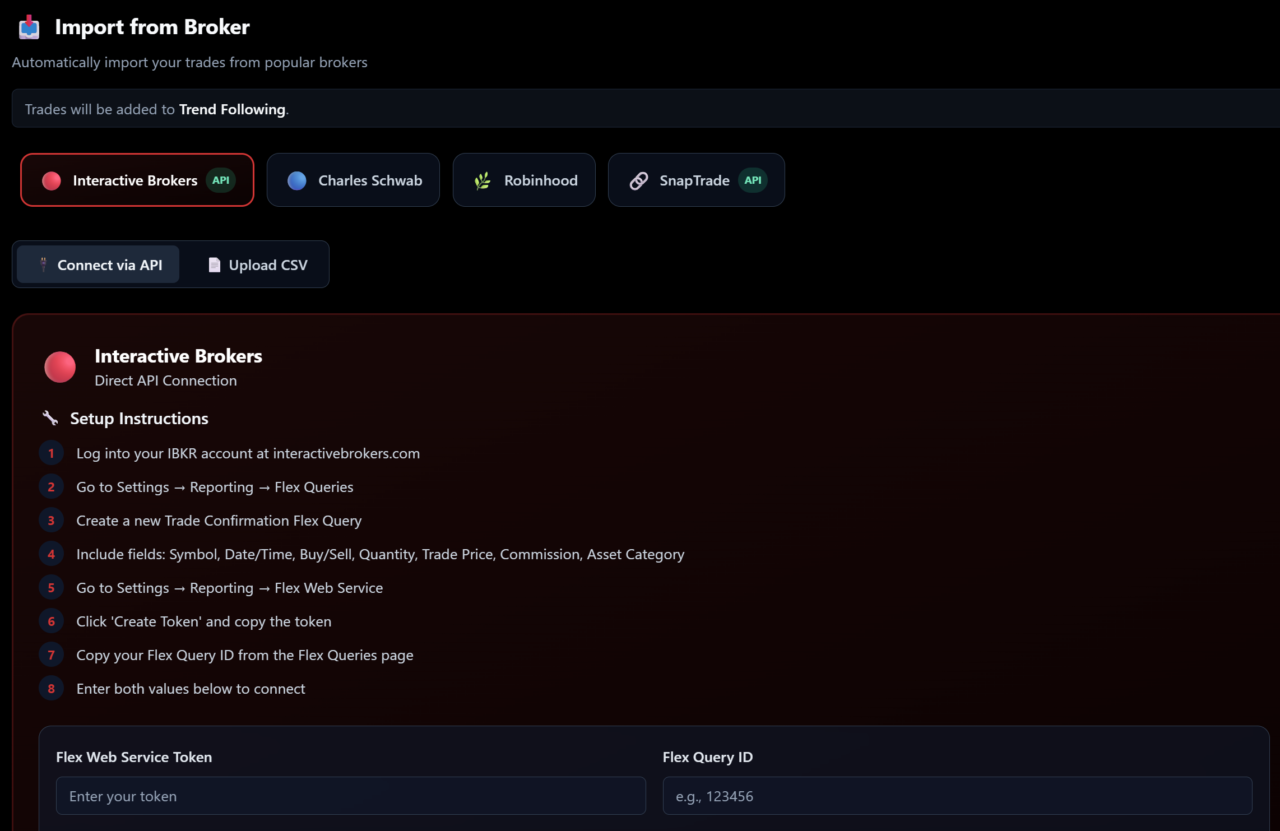
The API method uses IBKR’s Flex Web Service to pull trades directly into the journal. This requires two things from IBKR: a Trade Confirmation Flex Query and a Flex Web Service Token.
Step 1: Create a Trade Confirmation Flex Query
- Log into your IBKR account at interactivebrokers.com
- Go to Settings, then Reporting, then Flex Queries
- Create a new Trade Confirmation Flex Query
- Include these fields: Symbol, Date/Time, Buy/Sell, Quantity, Trade Price, Commission, Asset Category
- Save the query and note your Flex Query ID from the Flex Queries page
Step 2: Create a Flex Web Service Token
- Go to Settings, then Reporting, then Flex Web Service
- Click Create Token and copy the token
Step 3: Connect in the Journal
- Log into journal.financialtechwiz.com
- Go to the Trades tab and click Import from Broker
- Select Interactive Brokers, then choose the API connection tab
- Enter your Flex Web Service Token and your Flex Query ID
- Click Save Credentials, then click Fetch Trades from IBKR
Method 2: Upload a CSV
The CSV method runs a Flex Query export from IBKR and uploads the file directly to the journal.
Step 1: Create and Run an Activity Flex Query
- Log into your IBKR account at interactivebrokers.com
- Go to Performance and Reports, then Flex Queries
- Create a new Activity Flex Query and include: Trades, Symbol, Date/Time, Buy/Sell, Quantity, Trade Price, Commission
- Run the query and download the file as CSV
Step 2: Upload in the Journal
- Log into journal.financialtechwiz.com
- Go to the Trades tab and click Import from Broker
- Select Interactive Brokers, then choose the CSV upload tab
- Upload the CSV file you downloaded from IBKR
Your trades will load into the journal’s analytics immediately after upload. For a full walkthrough of what to do once your trades are in, see the Financial Tech Wiz Trading Journal complete guide.
Frequently Asked Questions
Which method should I use, API or CSV?
Use the API method if you want to fetch trades on demand without downloading a file each time. Use the CSV method if you prefer a manual import or are loading a large chunk of historical trade data in one go.
Do I need both a Flex Query and a Flex Web Service Token for the API connection?
Yes. The Flex Query defines which fields get pulled, and the Flex Web Service Token authenticates the connection. Both are required for the API method. The CSV method only needs the Flex Query.
Where is the import feature inside the journal?
Go to the Trades tab, then click Import from Broker. Select Interactive Brokers from the list and choose either the API or CSV tab from there.
What if trades are missing after the import?
For the API method, confirm your Flex Query includes all required fields and that you entered the correct Query ID. For the CSV method, check that your Activity Flex Query was set to include Trades and that all required fields are selected before re-running the export. If trades are still missing, you can log them manually inside the journal.
Get Your Free Trading Resources
Grab the free trading journal template plus the same tools we use to stay organized, consistent, and objective.
- Free trading journal template
- Custom indicators, watchlists, and scanners
- Access our free trading community
Enter your email below to get instant access.
No spam. Unsubscribe anytime.