How to Import Robinhood Trades into the Financial Tech Wiz Trading Journal

If you trade through Robinhood, you can pull your full trade history into the Financial Tech Wiz Trading Journal in a few minutes. Robinhood lets you export a CSV of your activity directly from their website, and the journal accepts it with a straightforward upload. Here is exactly how to do both.
Key Takeaways
- Export from Robinhood via your profile icon, then Account, then Reports and Statements, then Activity, then Download CSV
- Import inside the journal via the Trades tab, then Import from Broker, then select Robinhood
- Your trade history loads into the journal’s analytics immediately after upload
Recommended Tool
Financial Tech Wiz Trading Journal
Automated performance analytics, AI insights, TradingView chart review, and benchmark tracking. Starting at $9.91/month billed annually.
Try It FreeWhat You Need Before You Start
You need access to your Robinhood account at robinhood.com on the web (the export is not available in the mobile app) and an active Financial Tech Wiz Trading Journal subscription. If you do not have the journal yet, you can start a free trial at journal.financialtechwiz.com.
Step 1: Export Your Trade History from Robinhood
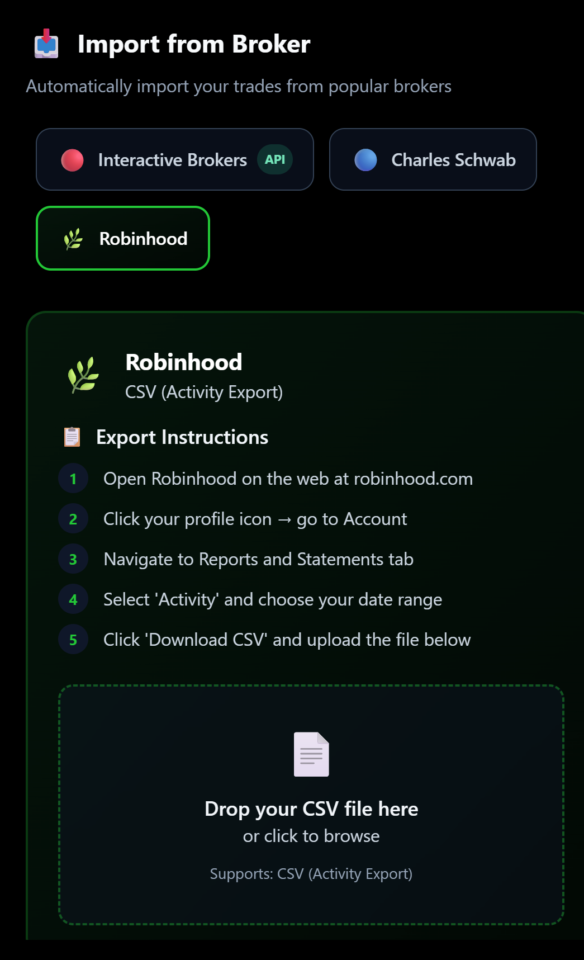
- Open Robinhood on the web at robinhood.com
- Click your profile icon and go to Account
- Navigate to the Reports and Statements tab
- Select Activity and choose your date range
- Click Download CSV and save the file to your computer
Step 2: Import the CSV into the Financial Tech Wiz Trading Journal
- Log into journal.financialtechwiz.com
- Go to the Trades tab
- Click Import from Broker
- Select Robinhood from the broker list
- Upload the CSV file you downloaded from Robinhood
Your trades will load into the journal automatically. From there, the journal’s analytics, performance breakdowns, and AI insights all apply to your imported history.
For a full walkthrough of what you can do once your trades are in, see the Financial Tech Wiz Trading Journal complete guide.
Frequently Asked Questions
Does the Robinhood export work on mobile?
No. The CSV export is only available through the Robinhood web app at robinhood.com. Log in from a desktop or laptop browser to access the Reports and Statements tab.
Where is the import feature inside the journal?
Go to the Trades tab, then click Import from Broker. Select Robinhood from the list and upload your CSV from there.
What if some trades are missing after the import?
The most common cause is the date range selected during export. Go back to Robinhood’s Reports and Statements page, adjust your date range, and re-export. If trades are still missing, you can log them manually inside the journal.
Can I import multiple CSV files to cover different date ranges?
Yes. You can run the import more than once with different CSV exports and the journal will add the trades from each file to your history.
Get Your Free Trading Resources
Grab the free trading journal template plus the same tools we use to stay organized, consistent, and objective.
- Free trading journal template
- Custom indicators, watchlists, and scanners
- Access our free trading community
Enter your email below to get instant access.
No spam. Unsubscribe anytime.