TradingView Order Book (DOM): How to Open It and Use It Like a Day Trader

The TradingView order book, also called the Depth of Market (DOM) panel, is a Level 2 ladder fed directly by your connected broker. It shows resting buy and sell volume at every price level, lets you place market, limit, and stop orders straight from the ladder, and updates in real time as orders queue and fill. This guide covers how to open it, which brokers feed it, how to read what you see, and how to actually trade from it.
Key Takeaways
- The TradingView Order Book (DOM) is a Level 2 ladder, fed by your connected broker, that shows resting buy and sell volume and lets you place orders directly from the panel.
- DOM is supported on roughly 30+ brokers including AMP, NinjaTrader, Tradovate, TradeStation, IBKR, Binance, Coinbase, and Bybit. If the DOM icon is missing from your right toolbar, your connected broker is not Level 2 enabled.
- Pine-script “order book” indicators are not the same as the DOM. They are synthetic reconstructions built from price and volume, not live broker feeds.
Try TradingView
Use the DOM Panel with a TradingView Free Trial
Connect a Level 2 broker, dock the order ladder next to your chart, and place market, limit, and stop orders directly from the panel. A TradingView free trial unlocks the higher tiers that pair well with DOM trading: faster data refresh, more indicators on screen, multi-chart layouts, and intraday volume profile next to the live order book.
Start Your TradingView Free TrialWhat the TradingView Order Book Shows
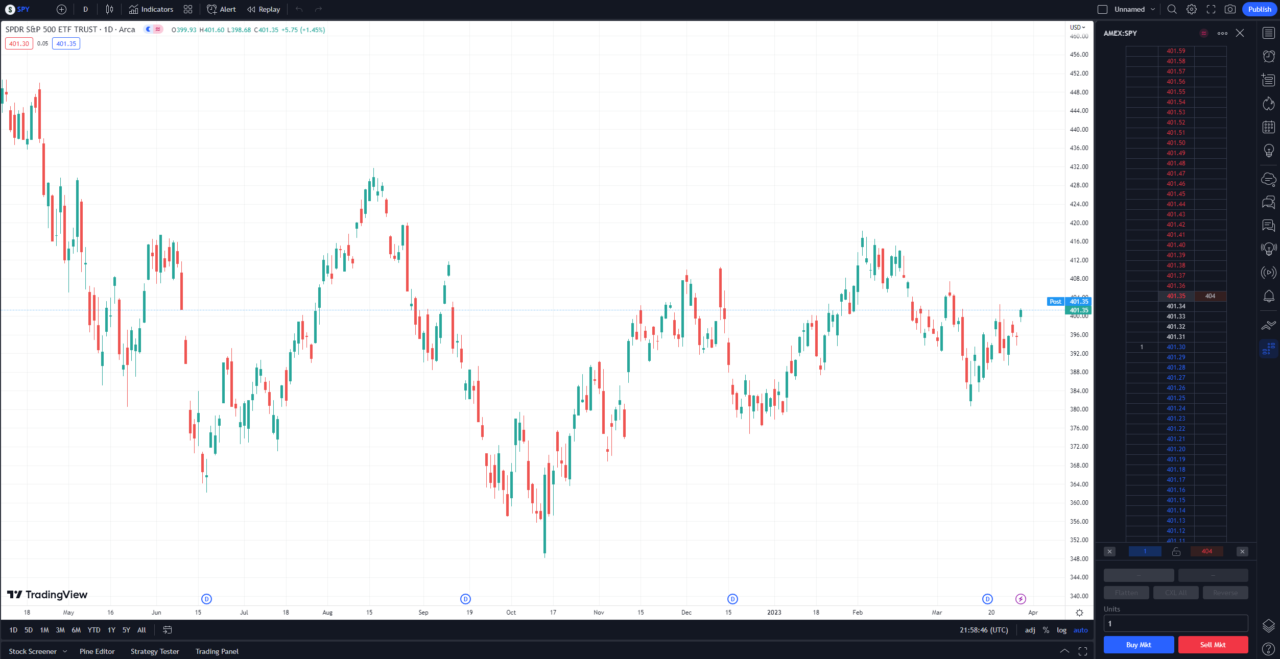
The DOM is a vertical price ladder. Bid volume sits on the left, ask volume sits on the right, and prices run down the center column. At each price level you see how many contracts or shares are queued to buy on the bid side and queued to sell on the ask side.
This is Level 2 data, not Level 1. Level 1 only shows the best bid and the best ask (one price each side). Level 2 shows the full visible queue several price levels deep on both sides. The buyer-seller imbalance you read off the ladder is the same force that drives price discovery in auction market theory. For per-exchange chart data subscriptions (which are separate from broker-fed Level 2), see the TradingView real-time data guide.
Brokers That Support DOM on TradingView
The DOM panel only appears once you connect a broker that publishes Level 2 data through TradingView. The supported list spans futures, equities, and crypto. Symbol coverage depends on the broker, so confirm with your broker before you trust the ladder for a specific instrument.
Futures: AMP, NinjaTrader, Tradovate, TradeStation, Optimus Futures, Dorman Trading, EdgeClear, AVAFutures, Ironbeam, StoneX, Velocity, WH SelfInvest. Tradovate is one of the most common DOM-friendly futures connections; the comparison in TradingView vs. Tradovate covers when one is enough versus when you actually need both. NinjaTrader is another supported DOM broker; if you are deciding between platforms, see TradingView vs. NinjaTrader.
Equities: Interactive Brokers (IBKR), Plus500US, Colmex Pro, Mexem, Interactive IL. Equities traders most often see DOM through IBKR. Interactive Brokers vs. TradingView walks through how the two integrate.
Crypto: Binance, Coinbase Advanced, Bybit, OKX, Phemex, HTX, Whitebit, Bitget. Crypto is where most retail traders first encounter DOM, since the order book is exposed for every major pair on these exchanges with no separate Level 2 fee.
How to Open the DOM Panel in TradingView
The DOM icon only appears on the right toolbar after a Level 2 broker is connected to your TradingView account. If you do not see the icon at all, your broker is either not connected or not on the supported list. That is the most common confusion (“why don’t I see the DOM button”), and the fix is usually broker connection, not a TradingView setting.

- Open a chart for a symbol your connected broker supports.
- Click the DOM icon on the right-hand toolbar. The order book opens as a side panel docked to the chart.
- Confirm the bid column on the left and the ask column on the right are populated. An empty ladder means the symbol is not tradable through your broker, the connection has dropped, or that exchange does not feed Level 2 to TradingView.
- Resize the panel and adjust the price range to see the depth you actually trade.
The DOM panel renders faster and fits more price levels on screen in the TradingView desktop app than it does in a browser tab.
Reading the DOM: Buy Side, Sell Side, and Imbalance
The two volume columns tell you where size is sitting. A heavy stack of bids two ticks below price is a visible cluster of buyers willing to absorb sellers at that level. A heavy stack of offers above price is the same on the supply side.
Imbalance is what most short-term traders watch for. When bid volume materially outweighs ask volume across the visible ladder, demand is leaning on supply and price tends to lift through resting offers. The reverse on the ask side leans the other way. None of this is predictive on its own (orders can be pulled in milliseconds), but the cluster sizes give you concrete reference levels for where to place stops and limit entries instead of guessing at round numbers.
Placing, Modifying, and Canceling Orders from the DOM
The DOM is not just a viewer. It is also the order entry surface. The exact controls vary slightly by broker, but the pattern is consistent across the platform.
- Market orders: Use the Buy Mkt and Sell Mkt buttons at the top of the panel. These execute immediately at the best available price.
- Limit orders: Click directly on the bid or ask volume cell at your target price. The order rests in the queue at that level.
- Stop orders: Right-click the price cell and select the stop type. Stops trigger to a market order once the price prints through your level.
Position management lives at the bottom of the panel. The position-size badge shows your current contracts or shares. The Flatten button closes the open position to flat at market. The Reverse button flattens and immediately opens the opposite side, which is useful for futures scalpers who flip direction often.
Cancellation has three levels. Click the X next to a single resting order to cancel that order alone. Click the X under the buy column or the sell column to cancel every resting order on that side. Click CXL ALL at the bottom to wipe every working order on the DOM.
Real DOM vs. Synthetic Order Book Indicators on TradingView
The Public Library has Pine indicators with names like Synthetic OrderBook, Volume Orderbook, and Depth of Market (LuxAlgo). They are useful tools, but they are not the same as the DOM panel. They reconstruct an order-book-style visual from historical price and volume bars. They run on any chart and any symbol because they do not need a broker connection. The trade-off is that they are inferences, not the live queue.
The DOM panel on the right toolbar is the real Level 2 feed pulled directly from your connected broker. If you searched “tradingview order book indicator” looking for a way to get DOM data without a broker connection, that is not what those Pine scripts are.
Tracking Your DOM-Driven Trades
DOM scalps and futures fills are the hardest trades to journal by hand. Fast click-throughs on the ladder, partial fills, and quick reversals all add up to a stack of micro-trades that nobody actually wants to type into a spreadsheet at the end of the session.
The Financial Tech Wiz Trading Journal auto syncs with Tradovate, TradeStation, IBKR, Coinbase, Binance, Webull, and other supported brokers, so the trades you placed from the DOM panel land in the journal automatically with entry, exit, and per-leg fee data attached.
Recommended Tool
Financial Tech Wiz Trading Journal
DOM scalps and partial fills are the hardest trades to journal by hand. Connect Tradovate, TradeStation, IBKR, Coinbase, Binance, or Webull and the trade you placed from the DOM panel lands in the journal automatically with entry, exit, and per-leg fee data. Starting at $9.91/month billed annually.
Try It FreeBottom Line
The TradingView order book is one of the few places on the platform where you trade the actual queue rather than a chart abstraction of it. Once a Level 2 broker is connected, the DOM gives you a fast, click-driven order surface with real visibility into resting volume on both sides of price. Treat it as a precision tool: it earns its place for active futures, equities, and crypto traders who need ladder-level reads, and it is overkill for a swing trader who places orders once a week.
Frequently Asked Questions
Is there an order book on TradingView?
Yes. TradingView ships a Depth of Market (DOM) panel that displays the order book for any symbol where your connected broker provides Level 2 data. The DOM button appears on the right toolbar once a supporting broker is linked.
How do I see the order book in TradingView?
Connect a broker that feeds Level 2 (the supported list includes AMP, IBKR, TradeStation, Tradovate, NinjaTrader, Binance, Coinbase, Bybit, and others), open a chart, and click the DOM icon on the right toolbar. The order book opens as a vertical ladder showing bid volume on the left and ask volume on the right at each price level.
Which brokers support DOM on TradingView?
TradingView’s published list spans futures (AMP, NinjaTrader, Tradovate, TradeStation, Optimus Futures, Dorman Trading, EdgeClear, AVAFutures, Ironbeam, StoneX), equities (IBKR, Plus500US, Colmex Pro, Mexem, Interactive IL), and crypto (Binance, Coinbase Advanced, Bybit, OKX, Phemex, HTX). Symbol coverage depends on the broker.
What is DOM in TradingView?
DOM stands for Depth of Market. It is the same data set as a Level 2 quote: the visible queue of resting buy and sell limit orders for an instrument at each price level. TradingView renders it as a vertical price ladder with bid volume on the left, ask volume on the right, and price points down the center.
Is the TradingView order book indicator the same as the real DOM?
No. Pine-script indicators with names like Synthetic OrderBook, Volume Orderbook, and Depth of Market (LuxAlgo) are reconstructions built from price and volume history. They run on any symbol but they are not actual Level 2 data. The real DOM panel on the right toolbar pulls live Level 2 directly from your connected broker.
How do I cancel an order from the DOM?
Click the X next to a single resting order to cancel that order alone. Click the X under the buy column or the sell column to cancel every resting order on that side. Click CXL ALL at the bottom of the DOM panel to cancel everything.
Why is my TradingView DOM empty?
Either the symbol is not tradable through your connected broker, or the broker connection has dropped, or the symbol does not have Level 2 data on that exchange. Switch to a major futures contract or a high-volume crypto pair on a supporting broker to confirm the panel is working.
Before you go
TradingView Real-Time Data: A Complete Guide
This article contains affiliate links I may be compensated for if you click them.
Financial Tech Wiz / Free resources
Build a clearer picture of your trading.
Start with the free trading journal template. Keep your trades organized, review your results, and build a consistent review routine.
- Free Google Sheets and Excel trading journal template
- Indicators, watchlists, and scanners
- Access to the free trading community
Ready for automatic trade tracking? Explore the Financial Tech Wiz Trading Journal.
Free resources + trading emails. Unsubscribe anytime.