How to Backtest on TradingView: A Complete 2026 Guide

Backtesting a trading strategy on TradingView takes about five minutes once you know where to find the tools. The harder part is knowing what the results actually mean and whether the numbers are telling you the truth. This guide covers both methods, the settings most traders skip, and how to use your backtest results as a bridge to live trading.
Key Takeaways
- TradingView offers two backtesting methods: Bar Replay (manual, no coding required) and the Strategy Tester (automated, requires a Pine Script strategy).
- Default backtest settings produce unreliable results. Configure commission, slippage, and position sizing before trusting any numbers.
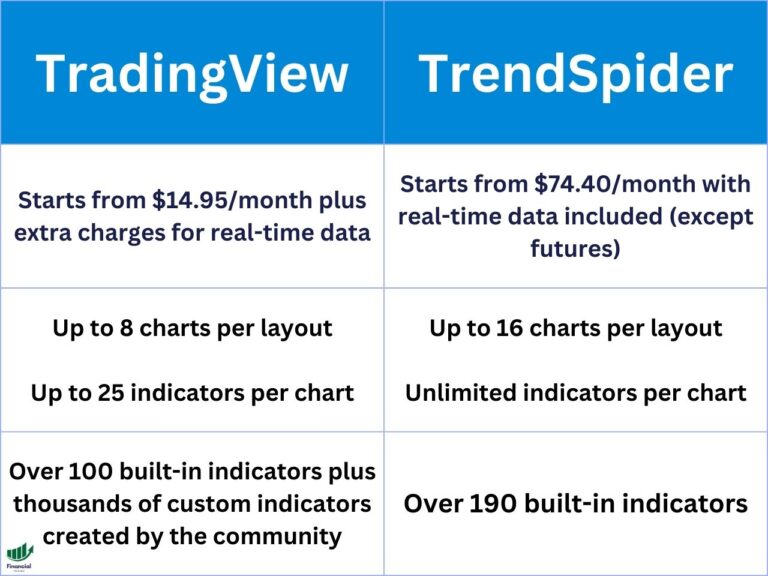
- Free plan backtesting is limited to daily charts. Intraday data requires a paid subscription starting at $14.95/month.
FINANCIAL TECH WIZ TRADING JOURNAL
You Backtested It. Now Track Whether It Holds Up Live.
Import trades from 25+ brokers automatically and compare your real P&L against your backtest assumptions. Built for traders who want to close the gap between testing and execution.
Try the Journal FreeCan You Backtest on TradingView?
Yes. TradingView has built-in backtesting tools available on all plans, including free. There are two distinct methods depending on how you want to work.
Bar Replay lets you replay historical price action manually. You pick a date in the past, the chart hides everything after it, and you trade through the data candle by candle in real time. This is the right tool for discretionary traders testing a setup that isn’t easily coded. Both tools are included on TradingView’s free plan, so you can start testing today.
Strategy Tester runs automated backtests using Pine Script strategies. Apply a strategy script to your chart, and the Strategy Tester tab generates a full performance report across all available historical data.
Manual backtesting mirrors how discretionary traders actually make decisions. Automated backtesting is faster and more consistent, but requires a working Pine Script strategy. The free plan supports both, with data limitations covered in the pricing section below.
How to Manually Backtest on TradingView with Bar Replay
Bar Replay is the fastest way to test a discretionary setup without writing any code.
- Open TradingView and load the chart you want to test.
- Click the Bar Replay button in the top toolbar (the rewind icon).
- Click anywhere on the chart to set your starting date. Everything after that point disappears.
- Press Play to advance candles forward, or use the step-forward button to move one candle at a time.
- Use the Replay Trading panel at the bottom to enter trades. Set your volume, click Buy or Sell, and drag stop-loss and take-profit lines directly on the chart.
- When done, check the Replay Trading tab for a performance summary and full trade list.
A few tips worth knowing: you can jump to a specific bar by clicking it directly or typing a date manually. There’s also a random bar option, which is useful for avoiding anchoring on market periods you already know the outcome of.
On mobile, Bar Replay is available through the three-dot menu below the chart. It works, but is significantly harder to use for detailed analysis than the desktop version.
Unlike TradingView paper trading, which tests your strategy against live data going forward, Bar Replay tests against historical data. Both have a place in a complete testing workflow.
How to Backtest Automatically with the Strategy Tester
The Strategy Tester runs automated backtests against historical data using Pine Script strategies. Before you can use it, you need a strategy on your chart, not an indicator.
The distinction matters. Indicators draw visual elements like lines or arrows on your chart but do not simulate trades. Strategies (which use strategy() in their Pine Script code) simulate actual buy and sell orders. If you don’t see the Strategy Tester tab at the bottom of your screen, you have an indicator loaded, not a strategy.
Steps
- Go to the Indicators menu and search for a Pine Script strategy. Look for “strategy” in the script title or type label. TradingView’s community scripts library has hundreds of them.
- Apply the strategy to your chart. The Strategy Tester tab appears at the bottom.
- Click the Strategy Tester tab. Three sub-tabs appear: Overview (equity curve and drawdown chart), Performance Summary (key metrics), and List of Trades.
- Right-click the strategy name on the chart, click Settings, then open the Properties tab to configure commission, slippage, and position sizing before reading any results.
Results update automatically when you change the chart symbol or timeframe, making it easy to test across markets.
TRADINGVIEW
Backtest Every Setup Before You Risk Real Money
Bar Replay and the Strategy Tester come standard on TradingView, so you can validate a strategy on historical data before you ever place a live trade.
How to Read Your TradingView Backtest Results
The Performance Summary tab generates a lot of numbers. Most traders look at Net Profit and stop. These four metrics give a clearer picture of whether a strategy is worth trading.
Profit Factor is gross profit divided by gross loss. Above 1.5 is a reasonable starting point for further testing. Below 1.0 means the strategy lost money overall. Values above 3.0 should trigger skepticism about overfitting.
Sharpe Ratio measures return per unit of risk taken. Above 0.75 is acceptable for retail trading. Above 1.5 is strong. Backtested Sharpe ratios typically drop 30-50% in live trading, so build that haircut into your expectations from the start.
Max Drawdown shows the worst peak-to-trough decline in the equity curve. Under 20% is generally manageable for an active strategy. A 50% drawdown requires a 100% gain just to recover.
Win Rate tells you how often individual trades were profitable. Between 40% and 60% is completely normal. A lower win rate isn’t a dealbreaker if average winners are significantly larger than average losers. Focus on risk-to-reward ratio, not win rate alone.
One sanity check before drawing conclusions: how many trades are in the sample? Fewer than 50 is too thin. Fewer than 200 spanning at least one complete market cycle is borderline. A strategy that triggered 15 times over three years isn’t backtested, it’s a coincidence.
Backtesting Settings to Configure Before You Trust the Numbers
This is the step most traders skip, and it’s why most TradingView backtests produce numbers that bear no relationship to live trading.
The default Strategy Tester settings assume 100% of your account equity goes into every trade, zero commission, and zero slippage. No real trader operates this way. Adjust these three settings before reading any results.
Position sizing: Change “Percent of Equity” from 100% to 2-10% per trade depending on your risk tolerance. This one change alone will significantly reduce reported returns, but the resulting numbers will actually reflect something real.
Commission: Set to match your broker’s actual fee. Stock and ETF traders at zero-commission brokers can often leave this at 0%. Options traders should enter the per-contract fee ($0.65 is common at most retail brokers). Futures traders should account for exchange and clearing fees ($1-3 per contract side is typical). Crypto traders should use 0.05%-0.10% depending on the exchange.
Slippage: Add 1-3 ticks for liquid instruments, more for lower-volume ones or strategies that enter at market open. Setting slippage to zero tells your backtest you always fill at the exact price shown, which almost never happens live.
To change these settings: right-click your strategy on the chart, click Settings, and open the Properties tab.
Can You Backtest on TradingView for Free?
Yes, with limitations. The free plan includes both Bar Replay and the Strategy Tester, but limits you to daily chart data for Bar Replay. Day traders and anyone testing intraday setups need a paid plan to access minute-level historical data.
Here’s what each 2026 plan unlocks for backtesting:
| Plan | Price | Bar Replay (1-min data) | Strategy Tester | Deep Backtesting |
|---|---|---|---|---|
| Free | $0 | Daily charts only | Yes (limited bars) | No |
| Essential | $14.95/mo | 42 days back | Yes | No |
| Plus | $29.95/mo | 180 days back | Yes | No |
| Premium | $59.95/mo | All available | Yes | Yes |
Swing traders working on daily or 4-hour charts can get meaningful results on the free plan or Essential tier. Day traders testing 5-minute or 15-minute setups need Plus at minimum, and Premium if tick-level accuracy matters.
A TradingView free trial gives you access to Premium features for 30 days, enough time to validate whether extended historical data changes your strategy’s results in a meaningful way.
FREE RESOURCE
Track Your Live Trades in a Free Google Sheets Journal
Not ready for the paid app? The free trading journal template gives you a structured place to log entries, exits, and notes as you test your strategies live. Used by thousands of traders to build consistency.
Get the Free TemplateWhat Is Deep Backtesting on TradingView?
Deep Backtesting is a Premium plan feature that removes the bar limit from the Strategy Tester.
On a standard backtest, TradingView tests your strategy against the bars currently loaded on your chart, which may only cover a few months of intraday data depending on your plan and timeframe. Deep Backtesting runs the strategy across all available historical data for the selected symbol, often extending coverage by years.
The practical difference is significant for shorter-term strategies. A 15-minute strategy tested over 6 months might generate 300 trades. The same strategy tested over 5 years could generate 2,500+ trades across different market regimes: trending, consolidating, and high-volatility. That’s a meaningfully larger sample to draw conclusions from.
Deep Backtesting also uses Bar Magnifier, which imports lower-timeframe data to simulate more realistic order fills within each bar. When testing a 1-hour strategy, Bar Magnifier checks what actually happened at the 5-minute level inside each bar, rather than making assumptions about where prices moved. The result is fills that are closer to what you would have gotten live.
If you’re on a Premium plan and building strategies you plan to trade, use Deep Backtesting. The results are materially more reliable than standard backtesting on limited data.
FAQ
How far back can you backtest on TradingView?
It depends on your plan and the chart timeframe. The free plan limits Bar Replay to daily chart data. The Essential plan extends minute-level Bar Replay back 42 days. Plus goes back 180 days. Premium provides access to all available historical data and includes Deep Backtesting, which removes bar limits from the Strategy Tester entirely. For most intraday strategies, Plus or Premium is the practical minimum for a statistically meaningful sample.
Can I backtest multiple timeframes on TradingView?
Not simultaneously in a single Strategy Tester run. To compare results across timeframes, run the backtest separately on each chart timeframe and note how performance changes. Some Pine Script strategies use multi-timeframe logic internally, referencing data from a higher or lower timeframe while the chart displays a single timeframe. For a side-by-side comparison, run and record separate tests.
How do I access the Strategy Tester in TradingView?
The Strategy Tester tab appears at the bottom of your chart only when you have a Pine Script strategy applied, not an indicator. Open the Indicators menu, search for a strategy (look for the strategy type label), and apply it to your chart. The Strategy Tester tab will appear automatically. If you have a strategy on the chart and the tab isn’t visible, the bottom panel may be collapsed.
Can I backtest on TradingView for free?
Yes. The free plan includes both Bar Replay and the Strategy Tester. The core limitation is data: free users are restricted to daily chart resolution for Bar Replay, so intraday setups cannot be tested without a paid plan. The Strategy Tester works on any timeframe on the free plan but is limited by the number of historical bars loaded on the chart. For extended history and intraday accuracy, the Essential plan ($14.95/month) is the minimum entry point.
Once you’ve validated a strategy through backtesting, the next step is comparing those results against your actual live trades. Set up TradingView alerts to notify you when your conditions trigger, and use the Financial Tech Wiz Trading Journal to track whether your live execution matches what the backtest promised.
Financial Tech Wiz / Free resources
Build a clearer picture of your trading.
Start with the free trading journal template. Keep your trades organized, review your results, and build a consistent review routine.
- Free Google Sheets and Excel trading journal template
- Indicators, watchlists, and scanners
- Access to the free trading community
Ready for automatic trade tracking? Explore the Financial Tech Wiz Trading Journal.
Free resources + trading emails. Unsubscribe anytime.