TradingView Desktop App: Download, Install, and Setup (2026)

TradingView’s web charts are the industry default, but the desktop app is a different product: native multi-monitor support, faster chart redraws, OS-level keyboard handling, and offline tab persistence. This guide covers how to download and install the app on Windows, Mac, and Linux, what changed in the 3.0 release, and when the desktop version is worth running over the browser.
The desktop app is free for every TradingView account tier and runs natively on Windows, Mac, and Linux. Charts, watchlists, and layouts sync with the web version, so switching between the two costs nothing.
Exclusive Deal: 30-Day FREE Premium Access + Bonus Credit
Don’t Miss Out – Sign up for TradingView Now!
- Advanced Charts
- Real-Time Data
- Track all Markets
Key Takeaways
- The TradingView desktop app is free for every TradingView account tier and runs natively on Windows, Mac, and Linux.
- Multi-monitor traders and keyboard-heavy users see real performance and workflow gains over the browser; casual chart-checkers will not.
- The 3.0 release (January 2026) added a customizable New Tab and cleaner layout naming, on top of 2025 improvements to alert volume controls and crosshair sync.
Recommended Tool
Financial Tech Wiz Trading Journal
Trade across multiple monitors in the TradingView desktop app and have every position auto-logged with equity curve, P&L by symbol, and benchmark comparison. Starts at $9.91/month billed annually.
Try It FreeDownload the TradingView Desktop App by OS
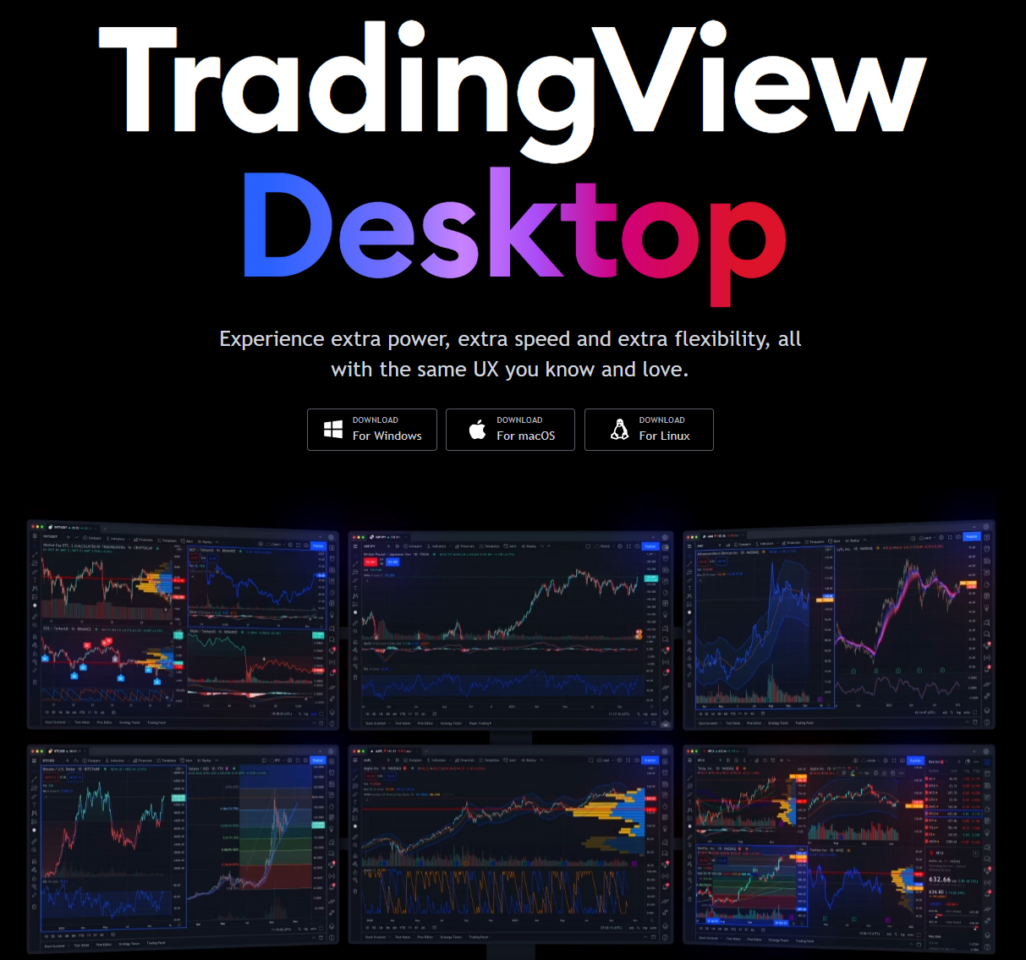
Every download starts at tradingview.com/desktop. The page detects your operating system and serves the matching installer, but you can switch tabs to grab a build for any platform.
Windows
Click “Download for Windows” to grab the .msix installer. Double-click the downloaded file to launch the Windows App Installer, accept the install prompt, and the app appears in your Start menu within seconds. If the .msix install fails with a Windows version error, the fallback is to install via PowerShell: open PowerShell as Administrator and run Add-AppPackage -Path "C:\Path\To\TradingView.msix" against the file you downloaded.
Mac
Download the .dmg for macOS, open the disk image, and drag the TradingView icon into the Applications folder. Replace the existing version if prompted. On the first launch, macOS Gatekeeper may prompt to confirm the developer; click Open to proceed. The app supports both Intel and Apple Silicon Macs natively, so M-series users get a true ARM build with no Rosetta translation.
Linux
Download the Debian package (.deb) from the same desktop landing page. Most Debian-based distributions (Ubuntu, Pop!_OS, Linux Mint) install it via a double-click in your file manager, which opens GNOME Software or your distribution’s package installer. From the terminal, the equivalent is sudo apt install ./tradingview.deb. Arch and Fedora users can extract the package contents or use a community AUR or Flatpak build.
System Requirements
| OS | Minimum | Recommended |
|---|---|---|
| Windows | Windows 10 (1809+) | Windows 11, 8 GB RAM, dedicated GPU for multi-chart layouts |
| macOS | macOS 11 Big Sur | macOS 13 or newer, 8 GB RAM, M-series chip |
| Linux | Debian-based, glibc 2.31+ | Ubuntu 22.04 LTS or newer, 8 GB RAM |
The app is light by browser standards, but multi-monitor and many-tab users should plan on at least 8 GB of system memory. Latency-sensitive futures and options traders will see the biggest gains on machines with discrete GPUs that handle the full chart redraw without sharing system resources.
TradingView Desktop App vs the Browser
The desktop app and the web app share a single codebase for charts, watchlists, and layouts, so analysis features are identical. The differences are environmental: the desktop app runs in its own window outside the browser sandbox, gets keyboard-shortcut priority over Chrome and Edge, and uses native multi-monitor APIs.
Pick the desktop app when you run TradingView on two or more monitors, when you live in keyboard shortcuts (the TradingView shortcuts cheat sheet covers the full list), when you want crosshair sync across windows, when you keep TradingView open all session and your browser eats memory you need elsewhere, and when you trade live and want OS-level alert sounds you can volume-control independently. The right day trading keyboard compounds the desktop app’s keyboard-priority advantage by giving you dedicated hotkeys for buy, sell, and chart navigation.
Stick with the browser when you only chart from a single laptop screen, when you mostly check charts a few times a day, when you are on a Chromebook or a corporate machine that blocks installs, or when you want a TradingView setup with the TradingView mobile app on the road. The browser version syncs the same layouts and watchlists, so switching back and forth costs nothing.
Financial Tech Wiz / Free resources
Build a clearer picture of your trading.
Start with the free trading journal template. Keep your trades organized, review your results, and build a consistent review routine.
- Free Google Sheets and Excel trading journal template
- Indicators, watchlists, and scanners
- Access to the free trading community
Ready for automatic trade tracking? Explore the Financial Tech Wiz Trading Journal.
Free resources + trading emails. Unsubscribe anytime.
Features and Benefits of the Desktop App
Enhanced Performance and Speed
The desktop app renders charts outside the browser sandbox, so it does not compete with browser tabs and extensions for CPU, GPU, or memory. The practical effect is smoother panning, faster crosshair movement, and quicker indicator redraws on heavy multi-chart layouts. Streaming data speed is the same as the browser because both pull from TradingView’s servers; the gain is on the render side, not on data latency.
Native Multi-Monitor Support
The desktop app uses native OS multi-monitor APIs. Drag any chart tab into a new window, send that window to a second or third monitor, and the OS, not the browser, manages window placement and focus. The app remembers each window’s monitor on next launch, so a configured setup reopens exactly where you left it.
Tab Linking and Crosshair Synchronization
- Tab linking by symbol ensures that linked tabs show the same symbol, making intraday cross-timeframe analysis quicker.
- Crosshair synchronization moves the cursor in lockstep across every linked window, so a 5-minute and a 1-hour chart of the same ticker stay aligned without manual scrubbing.
Compatibility and Synchronization
Layouts, watchlists, alerts, and indicator settings sync through your TradingView account, so the desktop app, the web app, and the mobile app all show the same workspace. Save a chart on the desktop, open the browser an hour later, and the chart is there. For the full feature breakdown across plan tiers, see our TradingView review.
TradingView Desktop 3.0 Update (January 2026)
The 3.0 release added a customizable New Tab and cleaner layout naming. New Tab can default to a chart, watchlist, news feed, or a saved layout, so traders who open dozens of tabs a session stop wasting clicks setting them up. Layout names now show the layout’s symbols and timeframes inline, which makes a long Layouts menu scannable at a glance.
The previous 2.x cycle added in-app volume control for alert sounds and customizable alert volume levels, so live traders can keep crosshair-cross alerts loud while keeping news-event alerts quiet without leaving the app.
Common Installation Issues
- Windows install fails with a “version not supported” error. Your Windows 10 build is older than 1809. Run Windows Update, then retry the .msix installer. The PowerShell fallback above works on patched 1809 and newer.
- Mac shows “TradingView can’t be opened because Apple cannot check it for malicious software.” This is Gatekeeper’s first-launch prompt, not an error. Right-click the app, choose Open, and confirm in the dialog. Future launches happen normally.
- Linux throws missing-dependency errors during install. The most common gap is libnotify or libappindicator. On Ubuntu and Debian, run
sudo apt install -fto auto-resolve, then re-run the installer.
How to Update the TradingView Desktop App
Updating the TradingView desktop app is simple:
- Visit the official TradingView desktop landing page.
- Download the latest installer for your OS.
- Run the installer; it overwrites the existing install in place.
- Launch the updated app and your prior layouts return automatically.
On Mac and Windows the app also auto-checks for updates on launch and prompts you when a new version is available; the manual download is only needed if the auto-update fails or if you skipped a release.
Get a Discount on Your TradingView Subscription
New users can usually get a 30-day free trial of TradingView and receive a discount on their subscription.
Frequently Asked Questions
Is the TradingView desktop app free?
Yes. The desktop app is free to install and runs on every TradingView account tier, including the free Basic plan. Charting features, indicator limits, and real-time data on the desktop app match what your subscription tier provides on the web.
Does the TradingView desktop app work offline?
No. Live data, indicators, alerts, and watchlists all require an internet connection because the app fetches data from TradingView’s servers. The app does cache your last open layouts and tabs locally, so launching offline shows the most recent state without live prices.
Can I run the TradingView desktop app on multiple monitors?
Yes. Native multi-monitor support is the main reason traders prefer the desktop app. You can drag tabs into separate windows, link them by symbol so the same ticker shows in every window, and enable crosshair synchronization so cursor movement mirrors across all displays.
Does the desktop app give faster data than the browser?
Streaming data speed is identical because both pull from the same TradingView servers. Where the desktop app wins is on render speed, since charts redraw outside the browser sandbox without competing with browser tabs and extensions for resources. The practical effect is smoother panning and crosshair movement on heavy multi-chart layouts, not a true latency advantage.
Is there a Linux version of the TradingView desktop app?
Yes. TradingView publishes an official Debian package for Linux. Ubuntu, Debian, Pop!_OS, and Mint install it directly. Arch and Fedora users can extract the package contents or use a community Flatpak build.
TradingView Desktop App | Bottom Line
The TradingView desktop app is a free upgrade for traders who run multi-monitor setups, live in keyboard shortcuts, or want OS-level alert volume control. Casual chart-checkers can stay on the browser without missing any features. New users can stack a free trial on top of the desktop install through our free TradingView trial guide, and traders who want every desktop trade logged automatically can pair the app with the Financial Tech Wiz Trading Journal for equity curve, P&L by symbol, and benchmark comparison. Traders who run both platforms can refer to the Robinhood desktop app guide for setup differences.
Financial Tech Wiz / Free resources
Build a clearer picture of your trading.
Start with the free trading journal template. Keep your trades organized, review your results, and build a consistent review routine.
- Free Google Sheets and Excel trading journal template
- Indicators, watchlists, and scanners
- Access to the free trading community
Ready for automatic trade tracking? Explore the Financial Tech Wiz Trading Journal.
Free resources + trading emails. Unsubscribe anytime.