Enable TradingView Dark Mode in 30 Seconds (2026)

TradingView defaults to a light theme, but switching to dark mode takes under 30 seconds on any platform. This guide covers every method: web, desktop app, iOS, and Android, plus how to save your chart template before switching so you do not lose your custom color setup.
Key Takeaways
- On web, click your profile picture and toggle the dark theme. On mobile, tap Menu at the bottom right, then the gear icon, then select Dark under Theme.
- Save your chart color template before switching: TradingView resets custom candle and background colors when you change themes.
- On the desktop app, the color theme setting is separate from the web platform. Set it independently from the three-dot menu at the top right.
Exclusive Deal: 30-Day FREE Premium Access + Bonus Credit
Don’t Miss Out – Sign up for TradingView Now!
- Advanced Charts
- Real-Time Data
- Track all Markets
Save Your Chart Template Before Switching Themes
When you switch TradingView between light and dark themes, the platform resets your chart colors to the theme’s defaults. Custom candle colors, background colors, and indicator color schemes get wiped. If you have a color setup you want to keep, save it as a chart template first.
To save your current chart layout as a template:
- Right-click anywhere on the chart.
- Hover over Template and select Save as.
- Give it a name (for example, “Light Setup”) and click OK.
After saving, switch to dark mode using any of the methods below. If you want to restore your old color setup, right-click the chart, go to Template > Load, and select your saved template. The colors load back instantly without affecting the theme itself.
TradingView also includes four built-in color presets: Black, Blue, Grey, and White. The standard dark theme uses the Grey preset. For a true black background (useful on OLED screens), apply the Black preset or manually set the chart background to hex #000000 under the Appearance tab in chart settings.
How to Enable TradingView Dark Mode on the Web
There are two ways to switch to the dark theme depending on where you are on TradingView.
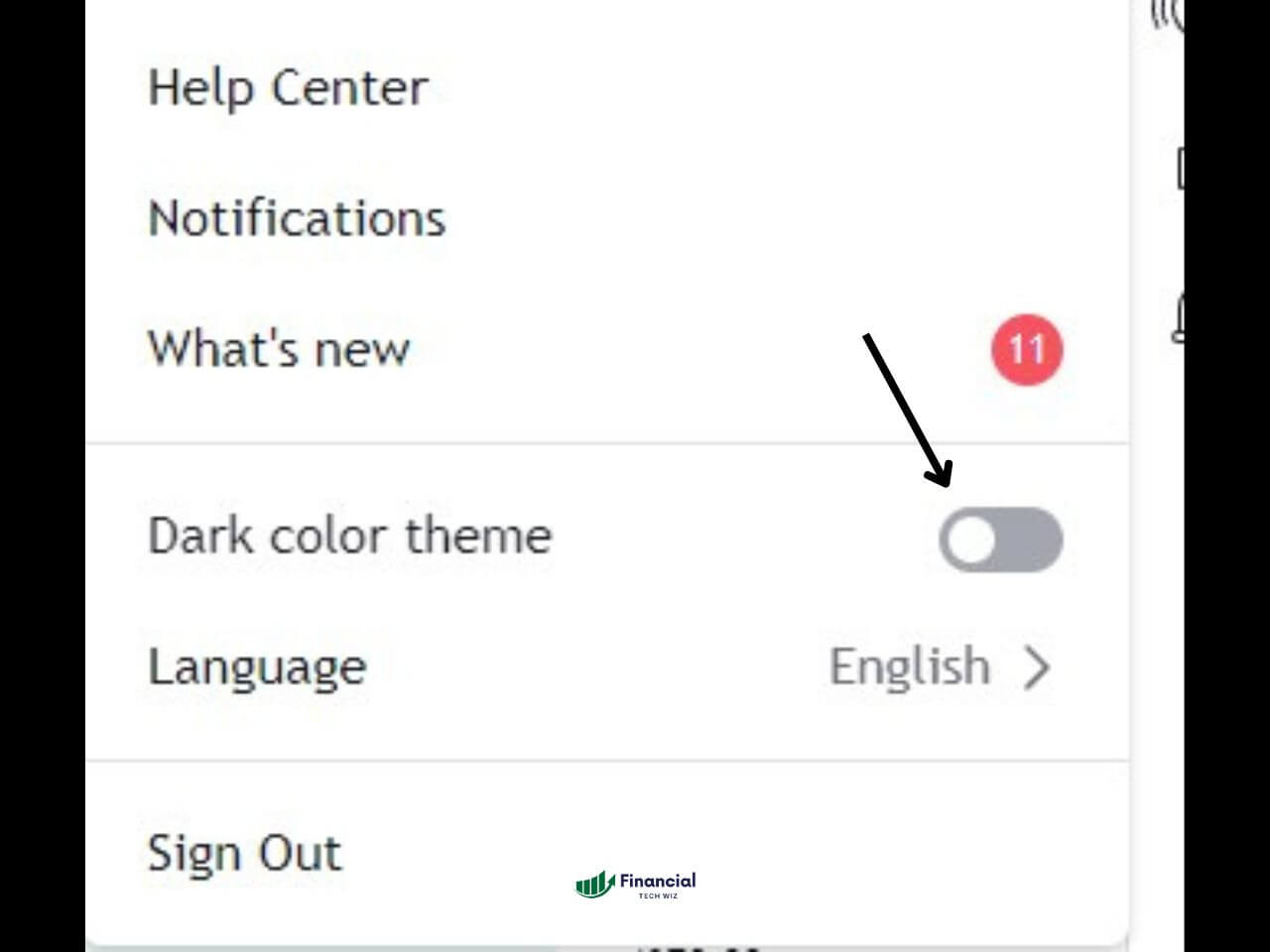
From the Homepage
- Go to the TradingView website.
- Click your profile picture in the top right corner.
- Toggle the “dark theme” option.
From a Chart
- Open any chart on TradingView.
- Click your profile picture in the top left corner of the chart window.
- Toggle the dark theme option.
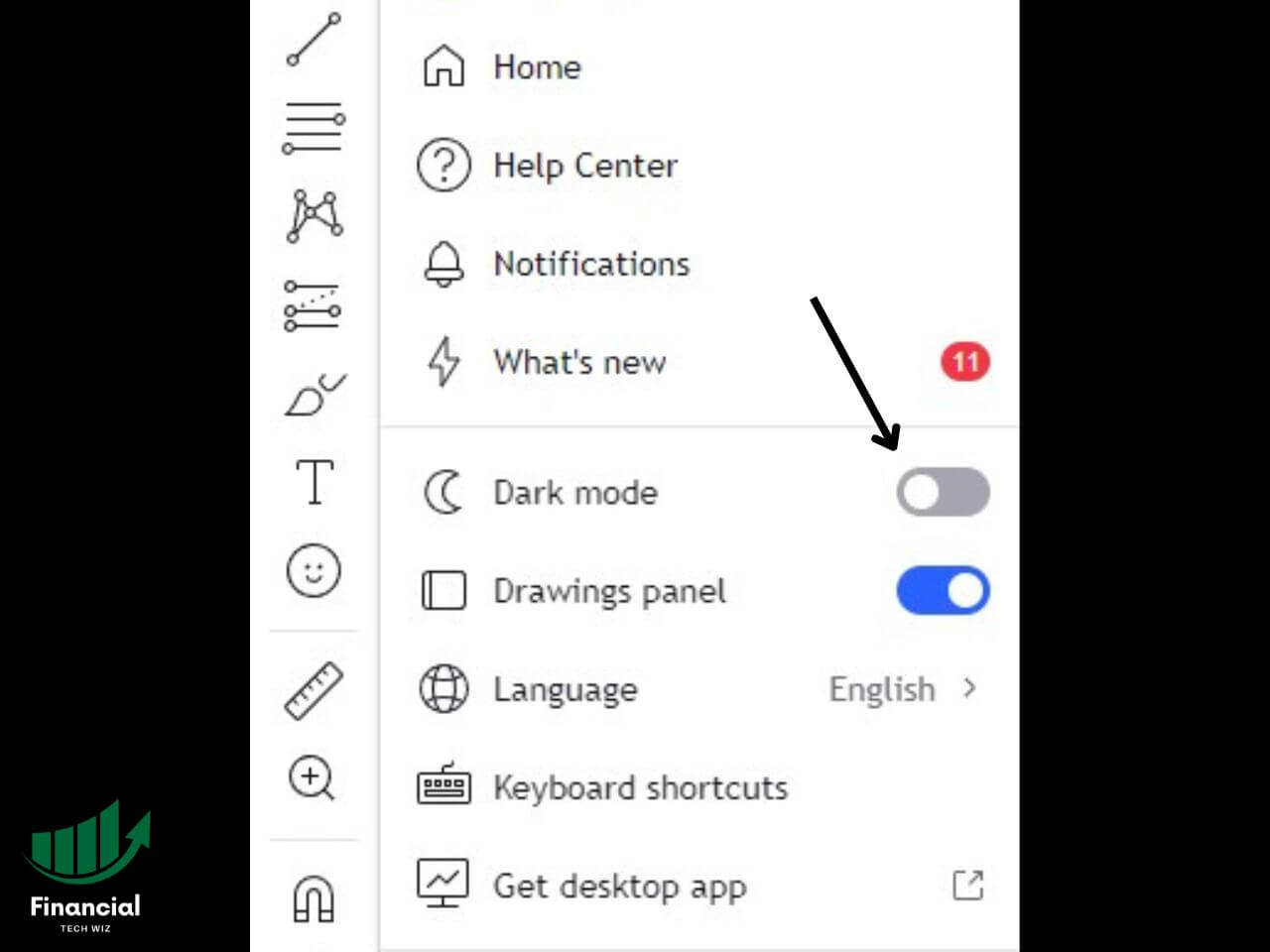
The setting saves to your account and persists across sessions. If you use the TradingView desktop app, the dark theme setting is managed separately.
How to Enable TradingView Dark Mode on the Desktop App
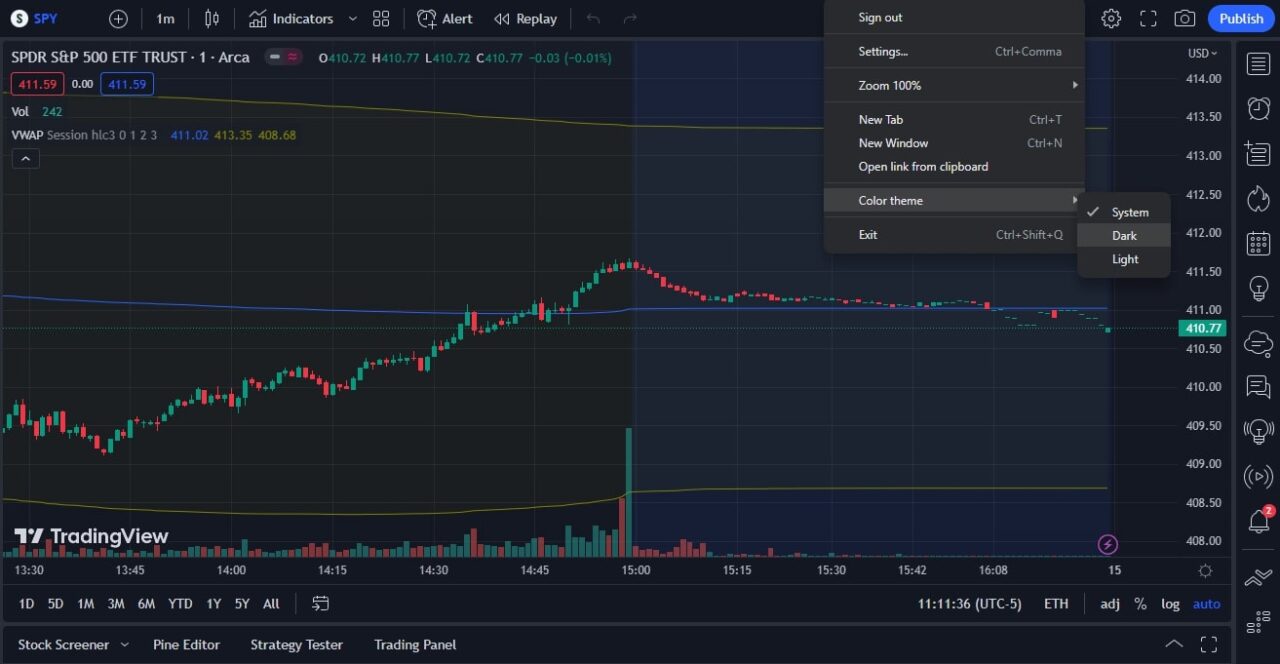
The TradingView desktop app has its own color theme setting, independent of the web platform.
- Open the TradingView desktop app.
- Click the three dots at the top right.
- Hover over “Color theme.”
- Select “Dark.”
Sync TradingView Dark Mode with Your System Theme
The TradingView desktop app can follow your operating system’s dark or light mode setting automatically. On Windows 11 and macOS, if you have system-wide dark mode enabled, TradingView detects the preference and matches it at launch.
This only applies to the desktop app. The browser version does not sync with OS theme settings. To use auto-sync on the desktop app, leave the Color Theme setting on its default option rather than selecting a manual theme. TradingView checks your OS color scheme each time the app opens.
If you prefer a fixed theme regardless of OS setting, open the three-dot menu at the top right of the desktop app, hover over Color theme, and manually select Dark or Light. The manual selection overrides OS sync. If auto-sync is active and you change your OS theme, restart the desktop app for TradingView to pick up the change.
How to Enable TradingView Dark Mode on Mobile
iOS (iPhone and iPad)
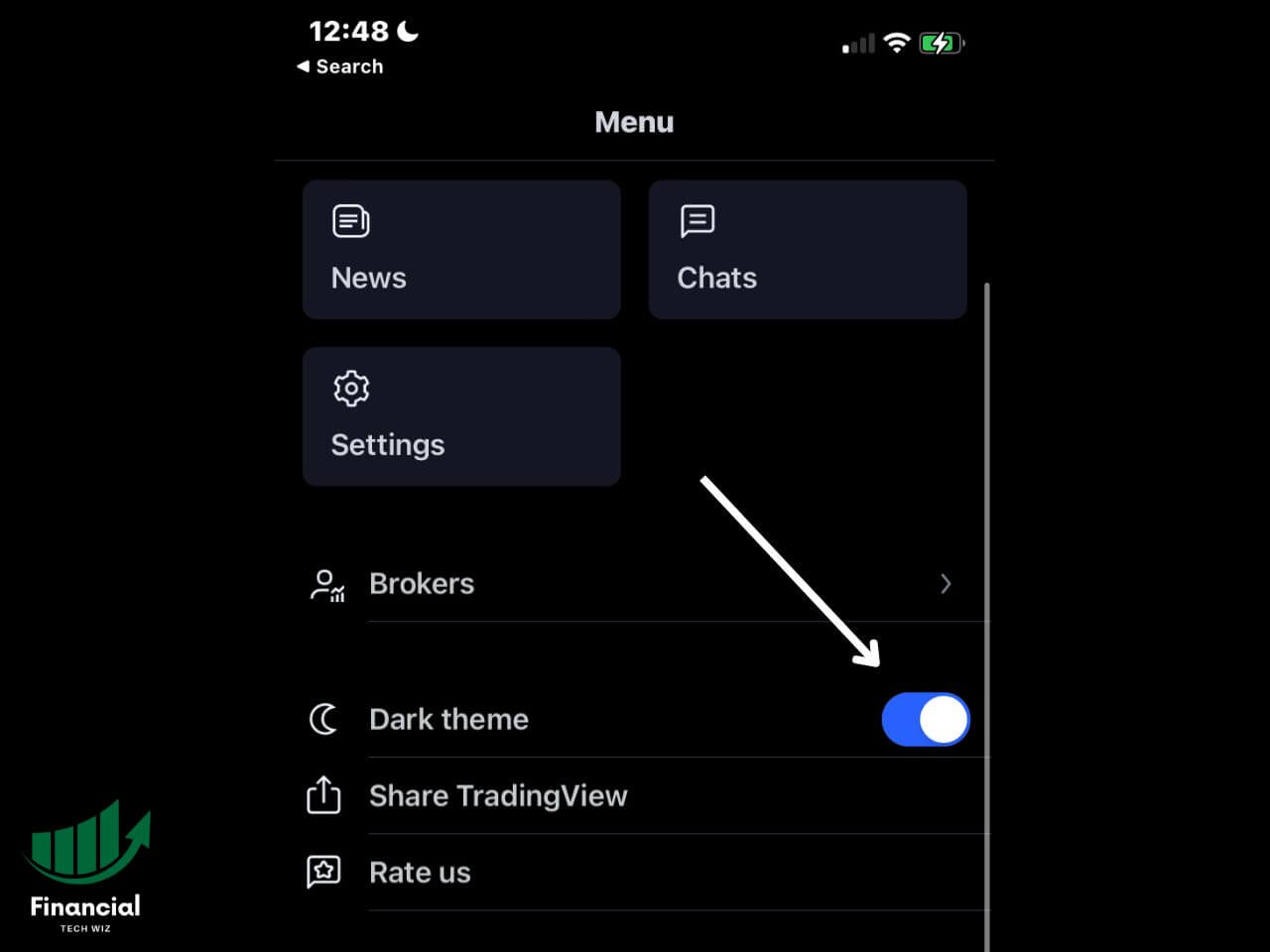
- Open the TradingView mobile app.
- Tap the Menu button at the bottom right.
- Tap the gear icon at the top right.
- Tap Theme and select Dark.
Android
- Open the TradingView app.
- Tap the profile icon or the bottom right menu.
- Tap Settings (gear icon).
- Under Appearance, select Dark theme.
The mobile theme setting is independent of your web account setting, so you may need to set each platform separately.
TradingView Dark Mode Video Guide
Watch the video below for a visual walkthrough of enabling dark mode on TradingView:

Customizing Your TradingView Chart Theme
Switching to dark mode changes the overall interface, but TradingView also lets you customize the chart background and candle colors independently. This is useful if you want a specific color scheme beyond the default dark grey. Candle style and colors are set separately from the theme, so if you are still working out how to get candlesticks on TradingView and how to recolor them, set the chart type first and then adjust the palette.
To customize chart colors:
- Right-click anywhere on the chart background.
- Select “Settings” or press Cmd+, (Mac) / Ctrl+, (Windows).
- Under the Appearance tab, adjust the background color, grid lines, and candle colors.
Popular variations include a true black background (hex #000000) for OLED screens, or dark navy themes used in many trading setups. You can also save custom chart themes to reuse across different charts. For more chart customization, see the TradingView shortcuts guide and best TradingView indicators.
To save a named chart color theme, right-click the chart, hover over Color Theme, and select Save. Give it a descriptive name like “Dark OLED” or “Swing Setup” and it appears in your Color Theme menu for one-click switching. You can build multiple named themes for different trading styles or timeframes and switch between them without affecting indicators or layout. For more chart display options, see the TradingView tutorial.
Why Traders Use TradingView Dark Mode
Dark mode is more than a visual preference for active traders:
Reduced eye strain. Extended chart review in a bright white interface causes eye fatigue. Dark mode reduces the contrast between the screen and your environment, particularly during overnight sessions or low-light trading.
OLED battery life. On phones and laptops with OLED screens, dark pixels draw significantly less power. Dark mode extends battery life during mobile trading.
Chart readability. Many traders find that price action, indicator lines, and candlestick patterns stand out more clearly against a dark background, particularly when monitoring multiple charts simultaneously. If you track multiple timeframes, check out how to set up TradingView multiple charts.
Troubleshooting: TradingView Dark Mode Not Working
Dark mode keeps resetting. This usually means you are not logged into your TradingView account. The dark theme is an account setting, not a browser setting. Log in and re-enable it.
Dark mode is enabled on the web but not the desktop app. The web and desktop app have separate theme settings. Set them independently using the steps above.
Mobile app not showing dark mode option. Make sure your app is updated to the latest version. Older versions of the TradingView mobile app had the setting in a different location.
Chart background is still light after enabling dark mode. The dark theme applies to the interface but not chart backgrounds if you have previously customized your chart colors. Go to chart Settings under the Appearance tab and reset or adjust the background color manually.
Frequently Asked Questions
Does TradingView have a dark mode?
Yes. TradingView has a built-in dark theme for the web platform, desktop app, and mobile app on both iOS and Android. You can enable it from your profile settings in under 30 seconds.
How do I change TradingView to dark mode on mobile?
On the TradingView mobile app, tap Menu at the bottom right, then tap the gear icon, then select Dark under Theme. On Android, the option may appear under Appearance in the settings menu.
Is there a TradingView black theme?
TradingView’s built-in dark theme uses a dark grey interface rather than true black. For a pure black background, you can customize the chart background color manually to #000000 in the chart Settings under the Appearance tab. This is especially useful on OLED screens.
Can I use TradingView dark mode without an account?
The dark theme setting is tied to your TradingView account, so it will not persist across sessions without logging in. You can enable it temporarily as a guest, but it resets when you close the browser. A free TradingView account is all you need to save the preference. Check out the TradingView free trial to get started.
Does dark mode affect chart colors or indicators?
The dark theme changes the interface background and chrome, not your chart colors or indicator settings. If you want your candles, lines, and indicators to match a dark background, you need to customize chart colors manually in the chart Settings panel.
Recommended Tool
Financial Tech Wiz Trading Journal
Automated performance analytics, AI insights, equity curve and P&L charts, and benchmark tracking. Starting at $9.91/month billed annually.
Try It FreeFinancial Tech Wiz / Free resources
Build a clearer picture of your trading.
Start with the free trading journal template. Keep your trades organized, review your results, and build a consistent review routine.
- Free Google Sheets and Excel trading journal template
- Indicators, watchlists, and scanners
- Access to the free trading community
Ready for automatic trade tracking? Explore the Financial Tech Wiz Trading Journal.
Free resources + trading emails. Unsubscribe anytime.