How to Change Your Time Zone on TradingView (2026 Guide)

Setting the right time zone on TradingView keeps your candle closes, session boundaries, and alerts aligned with the market you actually trade. The platform supports every time zone you would reasonably need, and you can change it in two clicks without touching your indicators or chart data. This guide covers every method, plus the two or three gotchas that catch new traders off guard.
Key Takeaways
- TradingView lets you set any time zone on a chart: the exchange’s own time zone, UTC, New York, London, or your local region. The setting is per chart, not account-wide.
- Changing the time zone only changes the horizontal axis labels and the clock at the bottom of the chart. It does not shift candles, move indicators, or affect session boundaries.
- TradingView uses the IANA database (America/New_York, Europe/London, Asia/Tokyo, and so on), so daylight saving time is handled automatically. You do not need to flip between EST and EDT manually.
Chart Every Market on TradingView
Set any time zone per chart, run multiple regions side by side, and trade sessions on the clock that matches your market. Start a free trial and new users get $15 in account credit on their first paid plan.
- Global market hours
- Custom time zones
- Multi-monitor layouts
- Real-time alerts
No commitment. Cancel anytime.

How to Change Your Time Zone on TradingView
Changing the time zone on TradingView is fast. There are two methods on desktop (web and native app behave identically) and one method on mobile. Each one applies to the chart you have open: the setting is per chart, not account-wide, so you can keep one layout on New York time and another on UTC at the same time. If you are new to the platform, our TradingView tutorial walks through the basics first.
Method 1: Using the Clock at the Bottom of the Chart
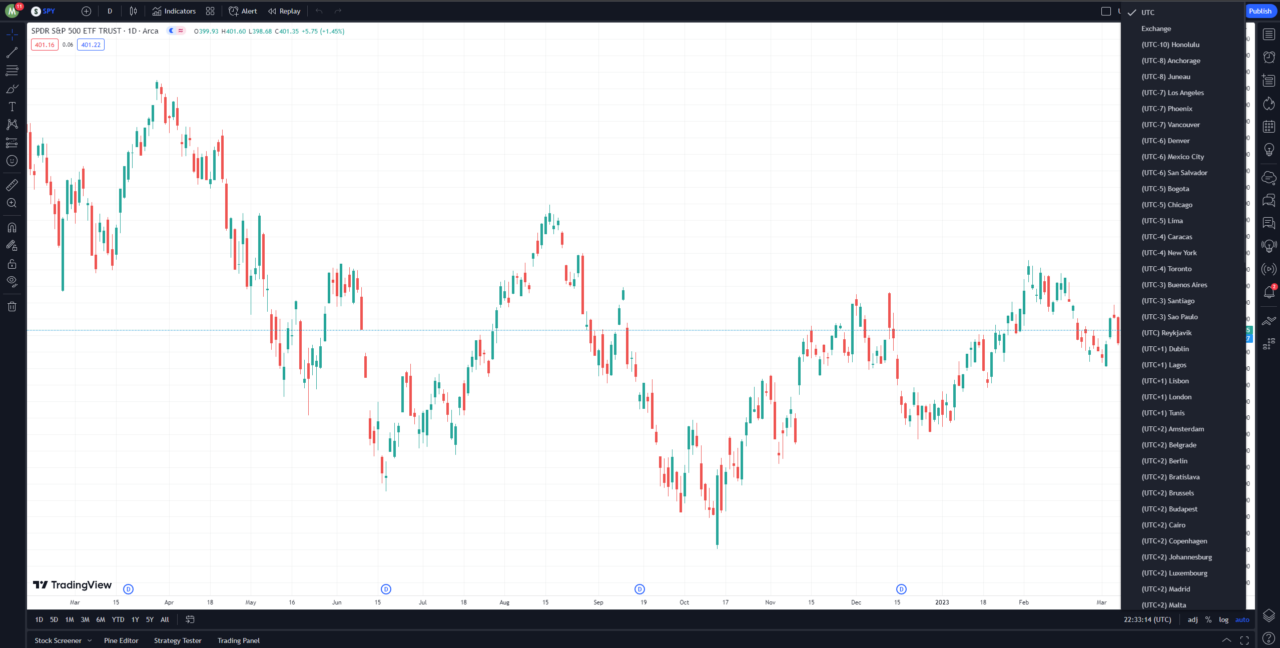
- Look at the bottom right of the chart. You will see the current time displayed as a clock.
- Click the clock. A list of time zones opens with a search bar.
- Find the region or city you want (for example “New York”, “London”, “Tokyo”) and select it. The chart axis updates instantly.
Method 2: Using Chart Settings
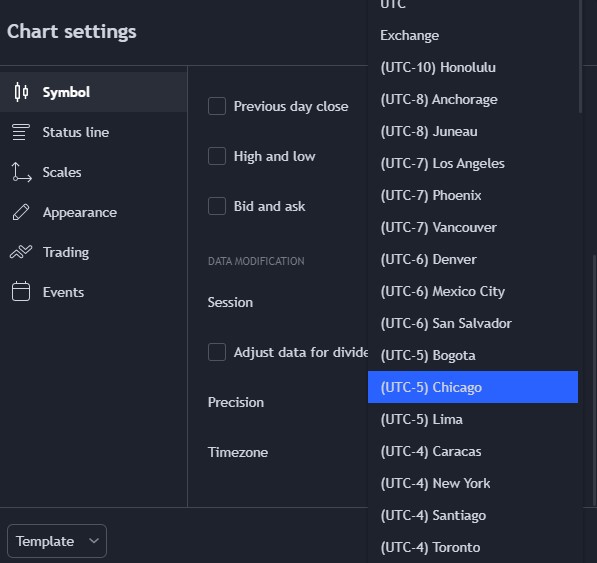
- Click the gear icon at the top right of the chart to open Chart settings.
- Select the Symbol tab at the top of the settings panel.
- Scroll down to the Time Zone dropdown and pick your region. Click OK to save.
Using the Mobile App
On the TradingView mobile app, open a chart, tap the settings icon, then tap Symbol. Scroll to Time Zone and pick your region. The mobile app uses the same IANA list as the web. For the full mobile walkthrough, see our guide on the TradingView mobile app.
How to Set TradingView to New York Time (EST/EDT)
US equities and futures traders almost always want the chart axis on New York time so the 9:30 open and 4:00 close line up where they expect. Here is the fastest way to set it:
- Click the clock at the bottom right of the chart.
- Type “New York” in the search bar.
- Select (UTC-5) New York. TradingView stores this as America/New_York, which auto-switches between EST (UTC-5) and EDT (UTC-4) on the correct date every spring and fall.
If you see a generic “UTC-5” option separate from “(UTC-5) New York”, pick the named New York entry. The fixed-offset UTC-5 option does not follow daylight saving time and will drift by an hour for part of the year. If you are still picking a plan, our TradingView free trial guide walks through which tier unlocks multi-chart layouts and extended hours data.
Understanding the Time Zone Options
Exchange Time Zone
Exchange is a dynamic setting that displays each chart in the time zone of that symbol’s primary exchange. An AAPL chart loaded from NYSE renders in New York time (UTC-5 during EST, UTC-4 during EDT). A Tokyo-listed stock renders in Tokyo time. Bitcoin on Coinbase renders in UTC. Because TradingView ties the Exchange setting to the IANA entry for each venue (America/New_York, Asia/Tokyo, and so on), daylight saving adjustments happen automatically. Exchange is the safest default if you trade across multiple markets.
UTC Time Zone
UTC (Coordinated Universal Time) is the global reference standard. Unlike a regional zone, UTC does not observe daylight saving, so the offset to any other time zone stays fixed year-round. Crypto traders and global macro traders often prefer UTC because it removes the DST shuffle and gives one consistent reference across every chart on every asset.
Your Local or a Custom Time Zone
You can also pick the region you actually live in, or any other region that matches how you track the market. If you trade London sessions from Denver, setting the chart to Europe/London keeps your alerts and session ranges labeled in the clock of the market that is actually moving. The setting is per chart, so nothing else in your layout is affected.
How Time Zone Affects Your Trading Analysis
Changing the time zone on a chart only changes two things: the labels on the horizontal axis and the clock at the bottom of the chart. Nothing else moves. Candles stay in place. Indicators recalculate off the same price and volume data. Alerts still fire on the same real-world moment. Session highlight boxes (pre-market, regular trading hours, after-hours) still render at the correct UTC timestamps, they are just labeled in your chosen zone. Here is what does and does not change when you flip the time zone:
- Changes: horizontal axis labels, the bottom-right clock, the time shown in crosshair tooltips.
- Does not change: candle positions, OHLC values, indicator outputs, alert trigger times, session boundaries.
Why Your TradingView Chart Is Showing the Wrong Time
If the chart clock does not match the market you expect, work through these three causes in order:
- A saved layout or template is overriding the setting. Layouts store the time zone with the chart. If you loaded a layout someone else built (or one of your own from a year ago), it may be forcing a zone you do not want. Open the clock at the bottom right and reset it.
- You picked a fixed UTC offset instead of a region. “(UTC-5)” by itself is not the same as “(UTC-5) New York”. The fixed offset stays at -5 year-round and drifts by an hour when DST starts and ends. Switch to the named region to let the IANA database handle the shift.
- The symbol time zone is different from the chart display zone. The Exchange setting uses the symbol’s native zone. If you expected New York time but the chart is showing Sydney time, you may be looking at an ASX-listed instrument rather than the NYSE version you had in mind. Double-check the ticker source.
Which Time Zone Should You Use?
Pick based on what you trade. There is no universally correct setting, only the one that matches your instrument mix and your habits for tracking sessions in the Financial Tech Wiz Trading Journal or any other performance tool you use:
- US stocks day trader: set to America/New_York. The 9:30 open and 4:00 close land on round axis labels.
- US futures trader: use Exchange. CME Globex sessions render correctly and overnight ranges are easy to read.
- Crypto or global indices: UTC. 24/7 markets with no DST drift.
- Mixed portfolio across regions: Exchange. TradingView handles the zone per symbol automatically.
- Swing trader tracking overnight levels: your local zone. You will be checking charts outside session hours, and local time keeps the weekday labels aligned with your calendar.
Frequently Asked Questions
What time zone does TradingView use by default?
By default, TradingView displays a chart in the exchange’s own time zone. An AAPL chart on NYSE renders in New York time; a Bitcoin chart on Coinbase renders in UTC. You can override this per chart from the clock at the bottom right.
How do I change the time zone on TradingView?
Click the clock in the bottom right corner of the chart and pick a time zone from the list. For a permanent change, open chart settings via the gear icon, go to the Symbol tab, and set Time Zone there. The change applies only to the current chart.
How do I set TradingView to New York time (EST)?
Click the clock at the bottom right of the chart, search for “New York”, and select (UTC-5) New York. TradingView stores this as America/New_York, which auto-adjusts between EST (UTC-5) and EDT (UTC-4) for daylight saving.
Does changing the time zone affect my indicators or backtest?
No. Changing the display time zone only shifts the labels on the horizontal axis and the clock at the bottom. It does not move candles, re-calculate indicators, or change session ranges. Your analysis is unchanged.
Does TradingView automatically adjust for daylight saving time?
Yes. TradingView uses the IANA time zone database (for example America/New_York, Europe/London), which encodes daylight saving rules. If you pick a region rather than a fixed UTC offset, TradingView handles the shift for you.
Why is my TradingView chart showing the wrong time?
The most common cause is a saved chart template or layout that forces a specific time zone different from what you expect. Check the clock at the bottom right first. A less common cause is using a fixed UTC offset (for example UTC-5) instead of America/New_York, which does not auto-adjust for DST.
Can I set different time zones on different TradingView charts?
Yes. The time zone setting is per chart, not account-wide. You can run multiple TradingView charts at once with one on New York time for US stocks and another on UTC for crypto at the same time.
What is the Exchange time zone on TradingView?
Exchange is a dynamic setting that displays each chart in the time zone of that symbol’s primary exchange. NYSE-listed stocks show New York time, Tokyo-listed stocks show Tokyo time, Coinbase crypto shows UTC. It is the safest default if you trade across multiple markets.
Before you go
If you want to keep educating yourself on TradingView, these posts pair well with this one:
- TradingView Pricing Guide
- How to Get a TradingView Free Trial
- The Best TradingView Indicators
- TradingView Dark Mode Setup
- Free Trading Journal Template
Financial Tech Wiz / Free resources
Build a clearer picture of your trading.
Start with the free trading journal template. Keep your trades organized, review your results, and build a consistent review routine.
- Free Google Sheets and Excel trading journal template
- Indicators, watchlists, and scanners
- Access to the free trading community
Ready for automatic trade tracking? Explore the Financial Tech Wiz Trading Journal.
Free resources + trading emails. Unsubscribe anytime.