How to Set Alerts on TradingView

TradingView alerts let you watch the market without sitting at the chart. You can fire a notification when a price hits a level, when an indicator crosses a value, when a trendline breaks, or when a strategy condition triggers. This guide walks through every alert type, plan limits, and the setup steps for both the web and mobile app, so you only build alerts that actually trigger when you need them. If you are still getting the lay of the land on the platform, our complete TradingView tutorial covers chart setup before you build alerts on top of it.

Key Takeaways
- TradingView supports five alert types: price, technical/indicator, drawing tool, strategy, and watchlist, and you can combine multiple conditions in a single alert.
- Alert quotas vary by plan: Free is capped at 1 active alert, Essential gets 20, Plus 100, Premium 400, and Ultimate 1,000 (price and technical alerts split equally on the top tiers).
- Webhook alerts unlock automated execution by POSTing to any URL, but they require 2-factor authentication on your TradingView account and a paid plan.
Recommended Tool
Financial Tech Wiz Trading Journal
Alerts tell you when to look. The journal tells you whether the trades you took on those alerts actually worked. Connect 36 brokers via SnapTrade, see win rate by setup, and pinpoint which alert conditions produce real edge. Starting at $9.91/month billed annually.
Try It FreeUnderstanding TradingView Alerts
Alerts are server-side notifications that fire when a market condition you defined goes true. Because they run on TradingView’s servers, they trigger whether or not your browser is open. The condition can be as simple as “AAPL closes above 200” or as nuanced as a multi-leg Pine Script strategy entry. Notifications are delivered through any combination of push, email, sound, and webhook URL.
Alert Types: What You Can Trigger On
Every alert on TradingView falls into one of five categories. Picking the right type up front prevents wasted alert slots and missed signals.
Price alerts fire when an asset touches, crosses, or stays above or below a static level. They are the simplest type and consume the smallest portion of your plan quota.
Indicator (technical) alerts fire on values produced by any indicator on the chart, including RSI overbought thresholds, moving average crossovers, MACD signal flips, and Bollinger Band touches. We cover the best TradingView indicators traders actually attach alerts to in a separate guide.
Drawing tool alerts attach to a trendline, horizontal line, ray, or Fibonacci level so the alert moves with the line if you adjust it later.
Strategy alerts fire on entry and exit signals from a Pine Script strategy and are the foundation of automated execution through webhooks.
Watchlist alerts apply a single alert condition to every symbol in a watchlist, so you can scan a basket for a price level or indicator condition without building one alert per ticker.
How to Set a Price Alert (Web Platform)
- Open the chart for the symbol you want to watch.
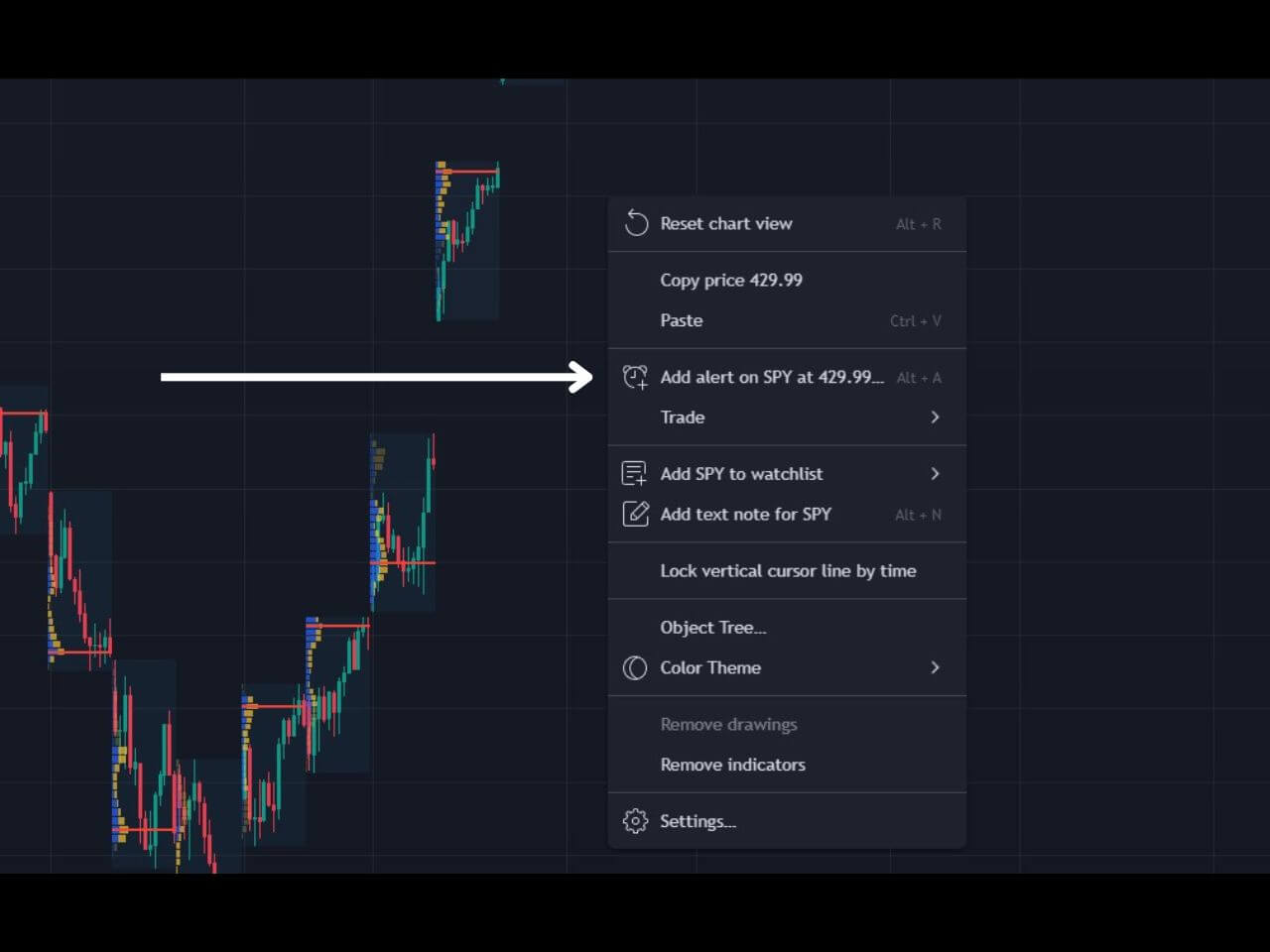
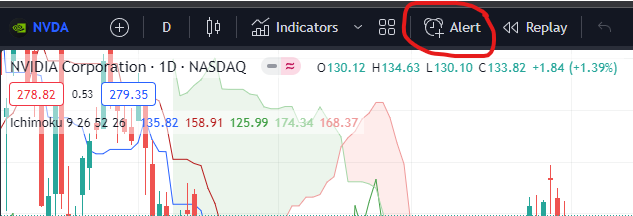
- Right click the price level on the chart and choose Add Alert, or click the alarm clock icon on the right toolbar and click Create Alert.
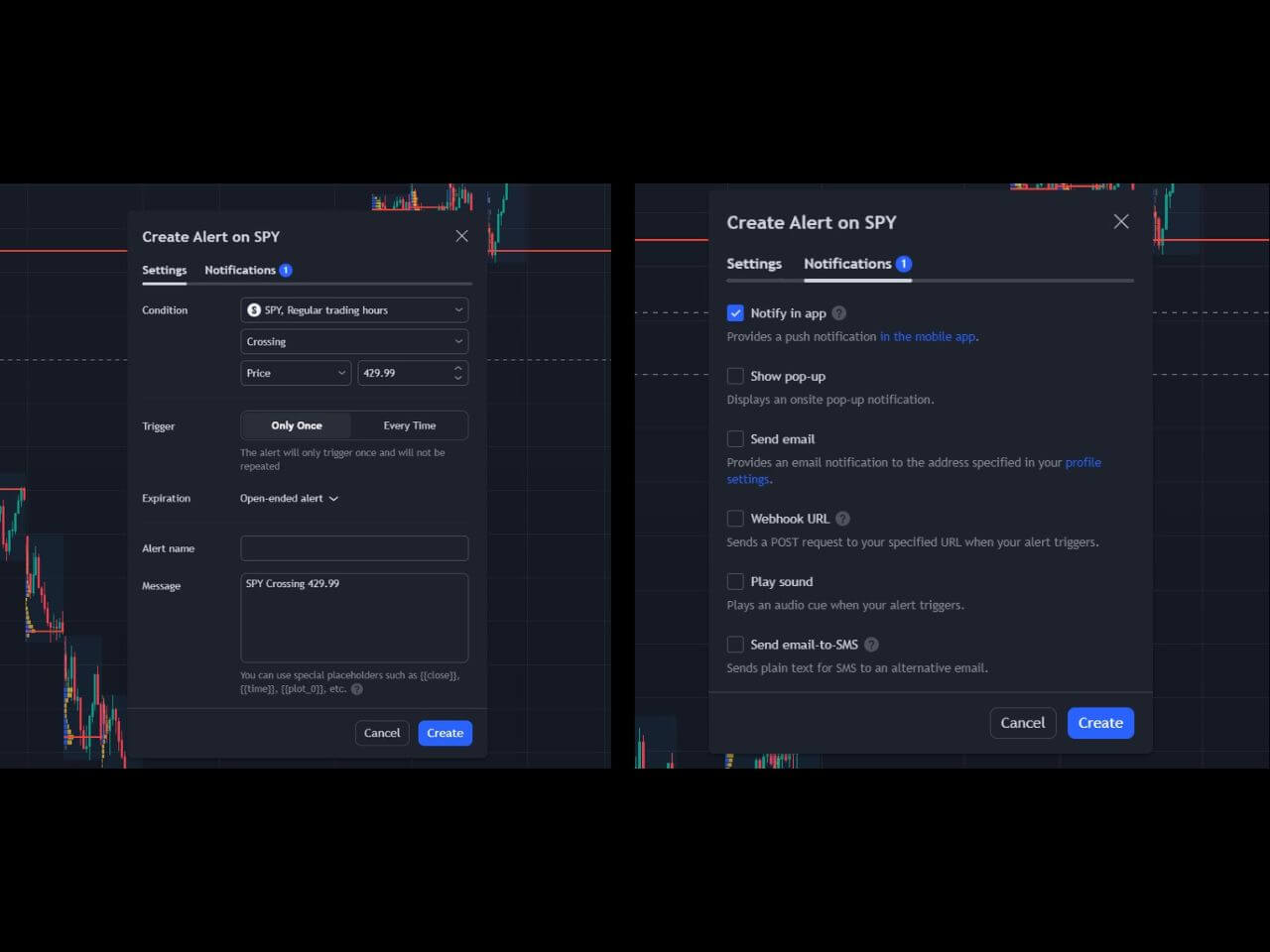
- In the Condition section, set the symbol, the comparison (Crossing, Crossing Up, Crossing Down, Greater Than, Less Than, Entering Channel, Exiting Channel), and the price level.
- Pick a trigger frequency: Only Once, Once Per Bar, Once Per Bar Close, Once Per Minute, or Every Time.
- Set an expiration date or leave it open-ended (open-ended is only available on Premium and Ultimate plans).
- Choose your notification methods on the Notifications tab and click Create.
How to Set an Indicator Alert
Indicator alerts work the same way as price alerts, with one extra step in the Condition dropdown. Open the alert dialog, then in the first Condition dropdown select the indicator name (RSI, MACD, Bollinger Bands, your custom Pine Script study, etc.). The second dropdown then lists every plot and every available comparison the indicator exposes (for example “RSI crossing 70” or “MACD crossing signal”).
For most indicator alerts, set the trigger frequency to Once Per Bar Close. That waits for the candle to confirm before firing, which filters out the intra-bar noise that produces false signals on volatile sessions.
How to Set a Drawing Tool Alert
Drawing tool alerts let you fire a notification when price interacts with a manually drawn line. Right click on a trendline, horizontal line, ray, or Fibonacci level you have drawn, choose Add Alert, then pick from comparisons like Crossing, Crossing Up, Crossing Down, Crossing Moving Up, or Crossing Moving Down. The alert stays anchored to the line, so if you redraw or extend it the condition updates automatically. This is the cleanest way to monitor support, resistance, and trendline breaks without rebuilding the alert every time the line moves.
Trigger Frequency, Expiration, and Alert Message
When you create an alert, three settings beyond the condition decide how often it fires and how long it lives.
Trigger frequency controls how aggressively the alert behaves. Only Once retires the alert after the first trigger, Every Time fires on every bar that meets the condition, Once Per Bar fires only the first time per bar, and Once Per Bar Close waits for the candle to close before firing. Once Per Bar Close is the safest setting for indicator alerts because it filters out intra-bar noise.
Expiration sets a date when the alert auto-deletes. Open-ended alerts on Premium and Ultimate plans never expire. On Essential and Plus, alerts default to a roughly two-month expiration window and have to be re-armed.
The Alert Message field controls what shows in the notification. You can use placeholder variables that pull live values at trigger time: {{ticker}} for the symbol, {{close}} for the closing price, {{plot_0}} for the first plot value of an indicator, and {{interval}} for the timeframe. For webhook alerts, format the message as JSON so the receiving service can parse fields directly.
How to Set Alerts on the TradingView Mobile App
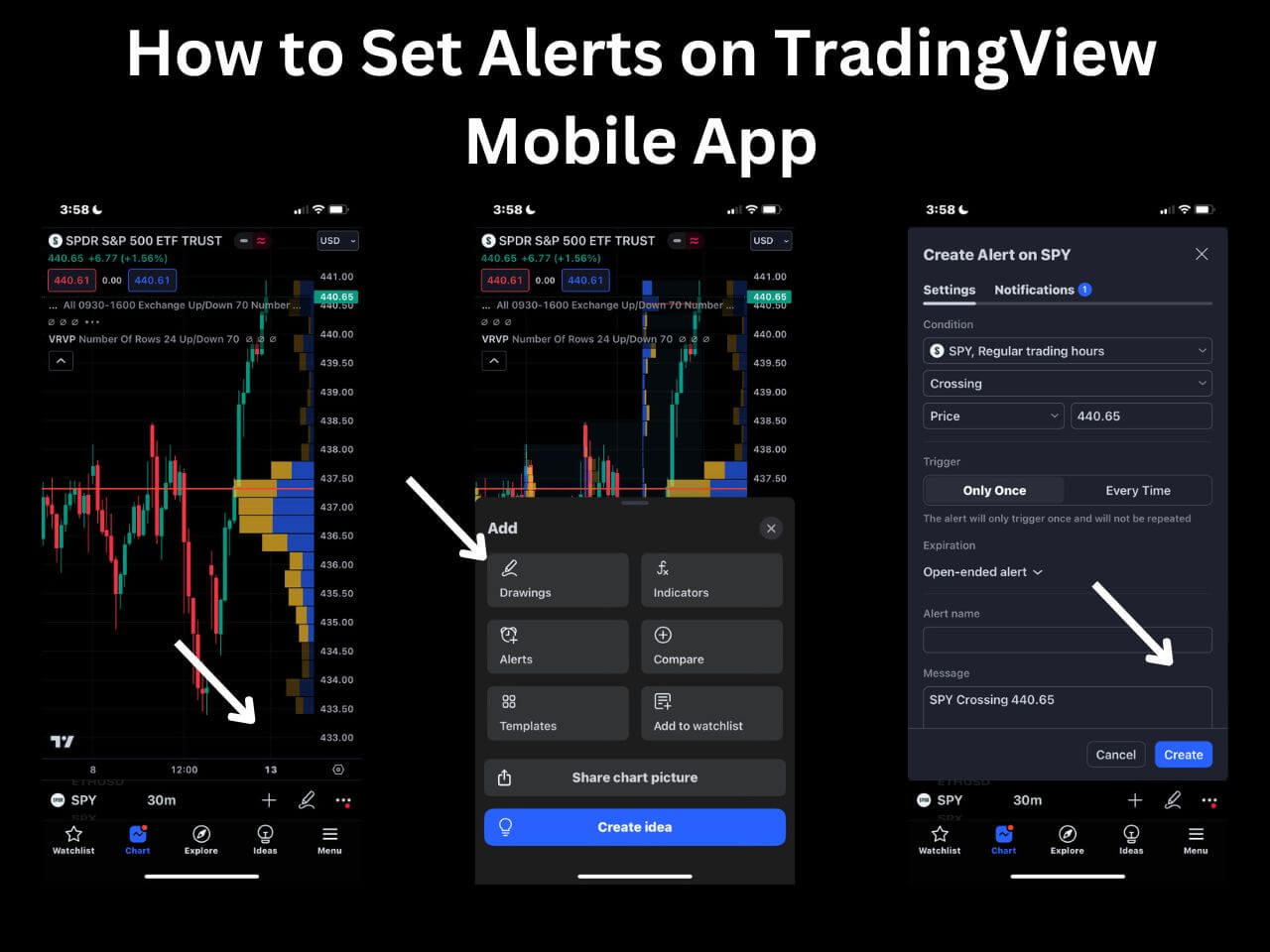
- Open the TradingView app and pull up the chart for your symbol.
- Tap the alarm icon at the top of the chart, then tap the plus icon to create a new alert.
- Pick the alert type (price, indicator, or drawing) and set the condition.
- Choose trigger frequency, expiration, and the notification methods you want delivered to the device.
- Tap Create Alert to save it.
Mobile alerts share the same quota as web alerts; you do not get separate slots for the app. Push notification setup, Touch ID login, and other mobile-only behaviors are covered in our TradingView mobile app guide.
Notification Methods Compared
You can pick any combination of the following on the Notifications tab of the alert dialog:
| Method | Where it Arrives | Best For |
|---|---|---|
| App notification | TradingView mobile app push | On-the-go trading, fastest delivery |
| Toast / pop-up | Browser tab on TradingView | Active charting sessions |
| Inbox tied to your TradingView account | Long-horizon swing alerts | |
| Sound | Browser audio | Multi-monitor desk setups |
| Webhook URL | Your custom endpoint | Automated trading, journal logging |
| Plain text (SMS) | Phone via SMS gateway | Backup channel where push is unreliable |
How Many Alerts Each TradingView Plan Allows
Alert quotas are split between price alerts and technical alerts on the higher tiers. The numbers below are current as of 2026.
| Plan | Active Alerts | Price/Technical Split | Expiration |
|---|---|---|---|
| Free | 1 active | Combined | ~2 months |
| Essential | 20 | Combined | ~2 months |
| Plus | 100 | Combined | ~2 months |
| Premium | 400 (200/200) | Split | Open-ended |
| Ultimate | 1,000 (500/500) | Split | Open-ended |
If you hit the cap, TradingView blocks new alert creation until you delete or pause existing ones (or upgrade). For a full feature comparison across plans see our TradingView pricing breakdown.
Webhook Alerts for Automated Trading
Webhook alerts turn TradingView into a signal source for automated execution. When the alert fires, TradingView sends an HTTP POST to a URL you specify and includes the alert message in the request body. If the message is valid JSON, TradingView sets the request content-type to application/json so any downstream service can parse it directly.
To enable webhooks, turn on 2-factor authentication on your TradingView account (a hard requirement, not optional), upgrade to a paid plan (webhooks are not available on Free), open the alert dialog, and paste your destination URL into the Webhook URL field on the Notifications tab. You can monitor delivery status in the Alert log under the Webhook status column.
Common destinations include execution platforms like TradersPost, PineConnector, and Capitalise.ai (all of which translate TradingView webhooks into broker orders), and self-hosted bots that read the JSON payload and route to a broker API. Never include broker credentials, API keys, or session tokens in the webhook body. The endpoint owner sees every webhook payload in plaintext on receipt.
Webhook alerts can also POST to a logging endpoint instead of an execution one. Routing every triggered alert to your trade record is the foundation of post-trade analysis in the Financial Tech Wiz Trading Journal.
For more on what programmatic access to TradingView actually looks like, see the TradingView API breakdown.
Get Your Free Trading Resources
Grab the free trading journal template plus the same tools we use to stay organized, consistent, and objective.
- Free trading journal template
- Custom indicators, watchlists, and scanners
- Access our free trading community
Enter your email below to get instant access.
No spam. Unsubscribe anytime.
Managing and Organizing Alerts
Open the Alert manager from the alarm clock icon on the right toolbar. The active list shows every alert tied to your account across all charts. Hover (or tap on mobile) any row to edit, pause, clone, or delete that alert. The search bar filters by symbol, the column headers sort by status, condition, or expiration, and the Inactive section holds alerts that have already fired or expired so you can reactivate them without rebuilding from scratch.
Why TradingView Alerts Fail to Trigger
Alerts that look correctly configured but stay silent usually trace back to one of five issues:
- The alert expired and is sitting in the Inactive section of the Alert manager. Expired alerts can be reactivated rather than rebuilt.
- The plan quota is full. New alerts created beyond the limit do not save.
- The trigger frequency is Only Once and the alert already fired. Switch to Once Per Bar Close for repeat signals.
- The condition references a Heikin Ashi or Renko series; alerts on synthetic series can lag or skip due to repaint behavior. Use a real-bar series instead.
- The webhook URL returned a 4xx or 5xx response. Check the Webhook status column in the Alert log.
How to Set Alerts on TradingView FAQ
How many alerts can you set on TradingView for free?
Free TradingView accounts get one active alert at a time. To run more than one simultaneous alert you have to upgrade: Essential gives you 20 active alerts, Plus 100, Premium 400, and Ultimate 1,000. Free-plan alerts also expire automatically after roughly two months.
How do I set an alert on the TradingView mobile app?
Open the chart, tap the alarm icon at the top of the screen, tap the plus icon, set the condition (price, indicator, or drawing), pick the trigger frequency, choose your notification methods, and tap Create Alert. Mobile alerts share the same quota as web alerts; you do not get separate slots for the app.
How do I view my active alerts on TradingView?
On the web platform, click the alarm clock icon on the right toolbar to open the Alert manager. The active list shows every alert tied to your account across all charts. On mobile, tap the alarm icon at the top of any chart to open the same list. Hover or tap any row to edit, pause, clone, or delete that alert.
How do I create a watchlist alert on TradingView?
Open the alert dialog, click the symbol selector at the top, and choose your watchlist instead of the current ticker. The same alert condition then applies to every symbol in that list. Each symbol counts as one alert against your plan quota, so a 10-ticker watchlist alert uses 10 of your active slots.
Do TradingView webhook alerts require a paid plan?
Yes. The Webhook URL field is locked on Free accounts and is only available starting on the Essential plan. Webhook alerts also require 2-factor authentication on your TradingView account. Both rules are enforced on the alert creation step, so a webhook alert that saves is a webhook alert that will fire if the condition triggers.
How to Set Alerts on TradingView: Bottom Line
Alerts are the difference between watching the market and trading it. Pick the right alert type for the condition, set Once Per Bar Close on indicator alerts to filter intra-bar noise, mind your plan quota, and route the trigger to a notification method you actually monitor. For automated execution, layer webhook delivery on top once 2FA is enabled.
If you do not have a TradingView account yet, you can start with a free TradingView account to get a free trial and a discount toward your subscription.
Get Your Free Trading Resources
Grab the free trading journal template plus the same tools we use to stay organized, consistent, and objective.
- Free trading journal template
- Custom indicators, watchlists, and scanners
- Access our free trading community
Enter your email below to get instant access.
No spam. Unsubscribe anytime.