E*TRADE Trading Journal: Automatically Import Stock and Options Trades
This page may contain affiliate links. We may earn a commission if you make a purchase through these links. Nothing on this website should be construed as financial advice. Learn more.

Looking for an E*TRADE trading journal? The Financial Tech Wiz Trading Journal syncs E*TRADE stock, ETF and options trades automatically with Broker Auto Sync, a paid feature ($19 a month or $119 a year). Free accounts import an E*TRADE CSV instead, with unlimited trades.
Power E*TRADE provides tools for trading and managing a brokerage account, while a separate journal helps you organize activity and review your own trade decisions. The Financial Tech Wiz Trading Journal can connect an eligible E*TRADE brokerage account when that connection is available, then route returned activity into the journal or journals you select.
Key Takeaways
- Free: export your E*TRADE trades as a CSV and upload it under Import & Sync Trades, Import a file, E*TRADE. Paid: Broker Auto Sync connects E*TRADE once and brings in new trades every morning.
- New broker links default to automatic sync. You can switch a journal link to one-time mode and refresh available broker data on demand.
- The journal reviews broker activity that the connection provides. It does not import Power E*TRADE scanners, simulation settings, or every transaction just because they appear in the brokerage platform.
How to export your E*TRADE trades as a CSV
Follow these steps in E*TRADE to download a file the journal can read. Menu names can shift when E*TRADE updates its site, so if a label differs, look for the trade or transaction history export.
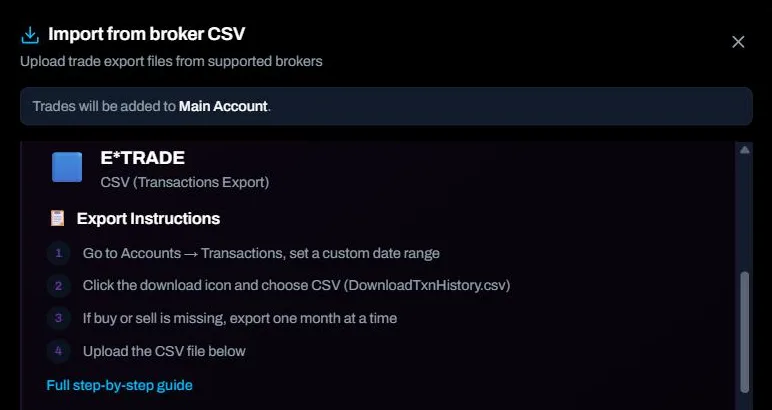
- Sign in at etrade.com and open Accounts, then Transactions.
- Pick the brokerage account and set a custom date range with From and To dates, then apply it.
- Click the download icon at the top right of the transactions table and choose the CSV (spreadsheet) format. The file is usually named DownloadTxnHistory.csv.
Which dates and file type to choose
Date range: export one month at a time if your file comes out without a buy or sell label on each trade; some traders report that longer ranges drop it. File type: CSV.
Common mistakes
- Exporting the Gains and Losses (cost basis) page. It is built for taxes and lot matching, not fill by fill trades.
- Exporting from Power E*TRADE’s positions view, which has no trade history.
- Importing two files whose dates overlap without checking Trades for duplicates first.
- Opening the CSV in a spreadsheet and saving it again before you upload. That can change dates and number formats; upload the file exactly as downloaded.
Import it into the Financial Tech Wiz Trading Journal
File imports work on the free account, with no card. Here is the exact path in the journal:
- Sign in to the journal and pick the journal these trades belong in from the top bar. If the top bar shows All Accounts, the import window asks which one to use.
- Open Import & Sync Trades from the menu (or click Import trades on the Trades page) and stay on the Import a file tab.
- Pick E*TRADE from the broker grid. Its export steps open in the import window.
- Drop the CSV into the upload box, or click the box to browse for it.
- Check the preview: Matched Trades (buys paired with sells), Open Positions (buys or sells without a match yet) and any rows marked as errors. Turn on Include open positions if you also want positions that are still open.
- Click Import (the button shows how many trades it will add).
Rows that are not trades, such as deposits, dividends and interest, are skipped and counted in the preview, and nothing is saved until you click Import. For newer trades later, export only the dates since your last file and import it the same way; if two files overlap, search Trades for the same symbol and date first. If the journal picked in the top bar is a verified broker account, only Auto sync can add its trades, so pick another journal for file imports. Older E*TRADE history for a synced account goes in through Add older history (CSV) on the Auto sync tab instead, described below.
Already a member? Open Import & Sync Trades.
Broker Auto Sync (paid)
Broker Auto Sync is the hands-off option: connect E*TRADE once and new trades come in on their own. It is on the paid plan ($19 a month or $119 a year); the CSV import above stays free.
- Open Import & Sync Trades from the menu and choose the Auto sync tab.
- Click Connect a broker (Connect your first broker the first time) and choose E*TRADE.
- Sign in on E*TRADE’s own page to authorize the connection, then come back to the journal. The connection is read-only: the journal cannot place, change or cancel orders.
- Optional, once an account is linked: set Sync trades from on its journal link to leave older trades out of that journal (they are hidden, not deleted). Leave it empty to bring in all the history E*TRADE sends: the 2 years of trades before the day you connect.
- Link each E*TRADE account to a journal: tap a journal under the account, use Give each its own journal, or pick two or more accounts and choose Create and import for a combined journal.
- Leave the sync icon on for automatic updates, or turn it off on a link for a one-time import.
After that, a full refresh runs every morning before the market opens, and new activity can arrive sooner when E*TRADE reports it. Use Sync now or Sync all to ask for an update at any time; broker processing can delay new fills. With auto sync on, unlinking the account or disconnecting the broker removes that account’s synced trades from the journal, so turn auto sync off on the link first if you want to keep them.
Trades older than E*TRADE’s 2 years
E*TRADE sends the 2 years of trades before the day you connect (see how far back each broker’s history goes). For older trades, download your E*TRADE history with the CSV steps above. Then, on the Auto sync tab, press Add older history (CSV) under that E*TRADE account, pick E*TRADE as the broker the file comes from (the journal has its own E*TRADE reader), choose the file and press Preview. The preview shows how many fills it will add, how many it leaves out because E*TRADE’s history already has them, and any rows it did not understand. Nothing is saved until you press Save.
Your file only fills in the years before E*TRADE’s history starts. From that day on, E*TRADE’s own data is used, so nothing counts twice, and later E*TRADE sales close the shares bought in your file first. If you upload another file that overlaps, only the rows not already saved are added. No file? Under Held at your broker before its history starts, add those shares in one click. The suggested price makes your journal’s cost basis match E*TRADE’s, so your profit and loss match too.
Once saved, your older E*TRADE trades stay in the journal even after E*TRADE’s 2-year window moves on. Changed trades are updated in place and keep your notes, tags, stops and review, and the chart of an open position marks each reported buy and can reach back years.
For the rest of the app, from journals to analytics, see the complete journal setup guide.
Does E*TRADE have a built-in trading journal?
E*TRADE provides trading tools, account views, charts, and analytics. Those functions help you work with the brokerage account and platform. A separate trading journal can give you a repeatable place to organize trades, keep notes and tags, and review performance from records available to that journal. The Financial Tech Wiz Trading Journal is a separate product; it does not replace E*TRADE order entry or account history.
Power E*TRADE Pro lets you choose brokerage accounts for platform tools. Power E*TRADE is a trading platform for an E*TRADE brokerage account, not a separate broker to connect to the journal. Select the eligible E*TRADE brokerage account you use there, then choose its journal destination. The platform account selector and the journal link are separate, and the journal can review only activity returned by the connected feed. Read E*TRADE’s Power E*TRADE Pro account-menu guide for its platform account controls.
For a side-by-side view of E*TRADE’s brokerage tools, see our E*TRADE vs. Fidelity comparison and E*TRADE vs. Schwab comparison. If you are comparing journaling workflows across products, use the best trading journals guide.
Manage automatic sync and one-time imports
New broker links default to automatic sync. The sync icon next to a journal link switches automatic updates on or off for that destination. When it is on, the journal requests available broker activity each morning before the market opens. New activity can also arrive sooner when your broker reports it, and broker processing can delay new fills.
Use Sync now to request a refresh for one connected account or Sync all to request refreshes for all linked accounts. The request can only bring in data available through the broker feed. If activity is missing, confirm the connected account and journal link, then check whether the transaction is available through the connected account.
For a one-time import, switch automatic sync off on that journal link. Imported trades remain in the journal, and you can still request a manual refresh. Check this setting before you unlink the account: unlinking or disconnecting with automatic sync on removes trades that account imported into that journal; unlinking with automatic sync off keeps the imported trades.
The first sync brings in the 2 years of trades E*TRADE sends before the day you connect; older trades come from your E*TRADE CSV under Add older history (CSV). Sync trades from on a journal link is optional; trades opened before it stay out of that journal, hidden rather than deleted, until you move the date earlier or press Use all history. Routine sync updates do not require clearing the journal.
What E*TRADE activity can the journal review?
Broker Auto Sync passes available broker activity into the journal’s import process. The feed may not include every security, order, or historical execution available in the brokerage account. Review the imported data before relying on an aggregate result. Broker Auto Sync imports stocks, ETFs and options (including expirations, assignments and exercises) as the broker reports them. Treasury bills and bonds are skipped. E*TRADE’s support for a product in its brokerage platform does not prove that product is covered by the connected feed.
Current holdings alone do not create opening trades or establish purchase dates. Shares bought before E*TRADE’s 2 years of history start come in from your older history file, or in one click under Held at your broker before its history starts; the journal never makes up purchases, sales, fees, or transfers. For options, compatible fills can group when they share a usable broker order reference and match the supported structure. Other fills fall back to individual matching. Check the imported position before adding a manual record so you do not double-count the same activity.
In the Financial Tech Wiz Trading Journal, analytics summarize supported dimensions such as symbol and hold duration. Tags and notes can help you search for individual records in the Trades tab, but they do not filter the aggregate Analytics statistics. Options results can show win rate and P&L across your options positions, broken down by symbol and hold duration. They do not provide a separate win rate by expiration or performance by underlying.
Use CSV imports or manual entry separately
The E*TRADE CSV import above is separate from Broker Auto Sync: it does not create an E*TRADE connection or ongoing sync, and it works on the free account.
To enter an individual transaction, choose Add Trade and review the Saving to destination before you save. The destination is chosen when the form opens. For detailed steps, use the trade logging guide. Manual entry works on a free account, with no card required.
Search for matching symbols and dates before importing a file that covers activity already brought in by Broker Auto Sync. Separate import routes do not share a universal duplicate guarantee.
Check the account, journal, and returned transactions
A Power E*TRADE view can show multiple brokerage accounts, but that platform selector does not tell the Financial Tech Wiz Trading Journal where a broker import should go. On the Auto sync tab, review the connected account label and every journal link. If you use separate journals for different accounts, confirm that the account you intend to review is linked to the journal you opened. If you combine records, check that each account has an active link to that combined journal.
When recent E*TRADE activity is absent, use this sequence before trying another import route:
- Compare the account name on the Auto sync tab with the brokerage account you used in Power E*TRADE.
- Check whether the specific account-to-journal link has automatic sync on. If it is off, request Sync now or Sync all when you want the latest available data.
- Check whether the activity appears in the connected brokerage account. The journal cannot import a scanner alert or platform action that is not provided as account activity.
- Look at the journal’s Trades list by symbol and date. A position you hold may be missing when its opening execution predates E*TRADE’s 2 years of history; holdings alone do not create trades, so add it from your older history file or in one click.
- Review options entries for grouped legs and individual fallback fills before editing or entering overlapping records.
Broker Auto Sync brings in the 2 years of trades E*TRADE sends, plus anything you add from an older history file. Keep your own E*TRADE statements as the official record of the account.
If you use CSV after checking the broker feed, treat it as a separate reconciliation step. A file may cover the same fills that already synced, while the importer does not promise universal duplicate detection across those paths. Search by date, symbol, and side first, preview the rows, and avoid importing a duplicate simply to rerun the daily refresh.
For notes about a decision or a review category, add context to the trade record or use a journal note with a searchable tag. Later, use those notes or tags to locate individual entries in Trades. When you move to aggregate Analytics, remember that those note and tag searches do not act as filters on the aggregate statistics.
For recurring reviews, record the E*TRADE account name, journal destination, refresh time, and any gap you reconciled manually. Keep a note when a row came from a template file so you can distinguish it from the broker connection. This makes later comparisons easier to interpret without suggesting that the journal has received a complete brokerage statement.
Review E*TRADE records consistently
- Record your thesis, planned risk, and notes in the journal workflow you use during trading.
- After a scheduled or manual refresh, confirm the E*TRADE account and destination journal before you start reviewing the data.
- Check recent fills, fees, and option matching. Search by symbol, date, note, or tag in the Trades tab to find records that need context.
- Use supported symbol and hold-duration analytics to examine recorded results. Treat scanner selections and simulated trades separately unless the broker feed explicitly returns that activity.
- Keep curve sources consistent across review periods. Automated Portfolio Performance estimates results from logged trades and available prices; Manual Portfolio Performance uses net liquidity that you recorded.
The automated curve has price-coverage and cash-flow limits, so it is not an exact statement of E*TRADE account value. Starting balance and cash-flow records improve the closest match; daily balance entry is not needed for the estimated curve. Use recorded net liquidity when you want to compare balance points entered manually.
What the Free Account and Paid Plans Include
The free account covers manual entry, CSV imports, R multiples, the journal analytics, delayed final scan results and the equity curves of our backtested trend following and mean reversion strategies. Free journals can join the leaderboard after 30 closed trades over 60 days, and free accounts can connect their own journal to Claude or ChatGPT through the MCP server. Paid plans add Broker Auto Sync, the AI Trading Coach, today’s live and intraday scan results for every scanner, the full Official Breakout, Official Dip and Official Combo backtests, and the full API and MCP tool set, including scanner and system data. The Daily Pivot Breakout Scanner has scan history back to 2000; each other scanner’s free page states when its own history starts. The free scanner pages are five trading sessions delayed. Results on historical data are hypothetical and do not guarantee future returns.
For the wider picture, compare trading journals side by side on one page, with prices checked November 2026.
Frequently Asked Questions
Does E*TRADE have a built-in trading journal?
E*TRADE provides brokerage tools, charts, and analytics. Those platform features are different from a separate trade journal for reviewing recorded executions, trade notes, and performance over time. The Financial Tech Wiz Trading Journal is an external journal that can organize available activity from a connected account; it does not replace E*TRADE’s platform.
Can I use Power E*TRADE or Power E*TRADE Pro with the journal?
Connect the eligible E*TRADE brokerage account that you use through Power E*TRADE. The platform’s selected account is a separate setting from the journal’s account-to-journal link. The journal reviews only activity returned by the connected account feed, so check the imported records rather than assuming every Power E*TRADE transaction is available.
Can I import E*TRADE paper trades or scanner strategies?
The journal does not import scanner rules, alerts, or paper-trading settings as strategy records. Broker Auto Sync requests activity from the connected brokerage feed. Power E*TRADE’s simulator and scanners are separate platform tools, so confirm whether any resulting transaction appears in the available broker data before expecting it in the journal.
Can E*TRADE options fills import as one spread?
Compatible multi-leg fills can group when they share a usable broker order reference and match the supported structure. If the reference or compatible structure is missing, fills fall back to individual matching. Review the imported position and avoid adding overlapping manual legs.
Financial Tech Wiz / Free resources
Build a clearer picture of your trading.
Start with a free journal account. Keep your trades organized, review your results, and build a consistent review routine.
Your free journal account includes the template and tools by email:
- Free Google Sheets and Excel trading journal template
- Indicators, watchlists, and scanners
- Access to the free trading community
Ready for automatic trade tracking? Explore the Financial Tech Wiz Trading Journal.
Free journal. No card needed.