How to Use the TradingView Mobile App for iPhone and Android
This page may contain affiliate links. We may earn a commission if you make a purchase through these links. Nothing on this website should be construed as financial advice. Learn more.

TradingView is a web-based platform that offers live quotes, charts, and tools for technical analysis. You can also use TradingView on your mobile device with the TradingView app for iPhone and Android.
We also have a guide that covers the TradingView desktop app you can check out.
In this article, we will guide you through the basics of using the TradingView app and show you some of its features. If you haven’t already, consider signing up for a TradingView free trial so you can access everything it has to offer at no cost.
Test this on your own charts with 30 days of paid TradingView features.
Start your free TradingView trialNew accounts get a $15 promo code by email right after the first purchase, good on any full-price plan for 12 months (not on sale prices). Affiliate link: we may earn a commission at no extra cost to you.
Key Takeaways
- The TradingView mobile app (iOS and Android) syncs your watchlists, chart drawings, indicators, and server-side price alerts automatically with your desktop and web layouts.
- While you cannot write new Pine Script code inside the mobile app, any custom or community script saved to your Favorites on desktop can be applied on mobile in two taps.
- Because building multi-filter stock screens on a phone screen is tedious, pairing the TradingView app with free pre-built stock scanners and the Financial Tech Wiz Trading Journal lets you review ready-made daily breakout lists on your phone in seconds.
How to Change Chart Layout on the TradingView App
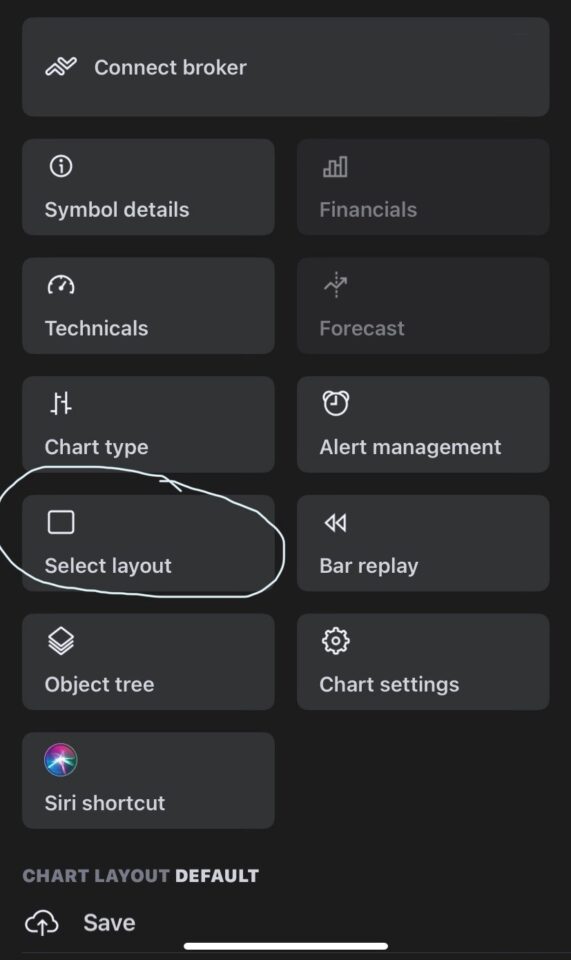
To change the chart layout in the TradingView mobile app, you need to:
- Tap on the chart icon at the bottom of the screen
- Tap on the three dots at the bottom right corner
- Tap select layout
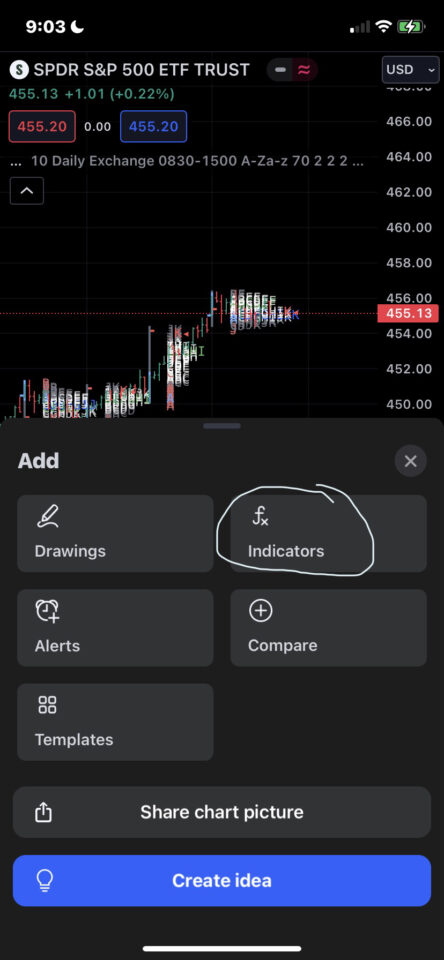
How to Add Indicators on the TradingView Mobile App
To add indicators in the TradingView mobile app, you need to:
- Tap on the chart icon at the bottom of the screen
- Tap on the plus icon at the bottom right corner
- Tap indicators and select the indicator you want to add
You can search for any indicator by name or category in the search bar. To add an indicator to the chart, simply tap on it, and it will appear on the chart. You can also edit or remove indicators by tapping on them again.
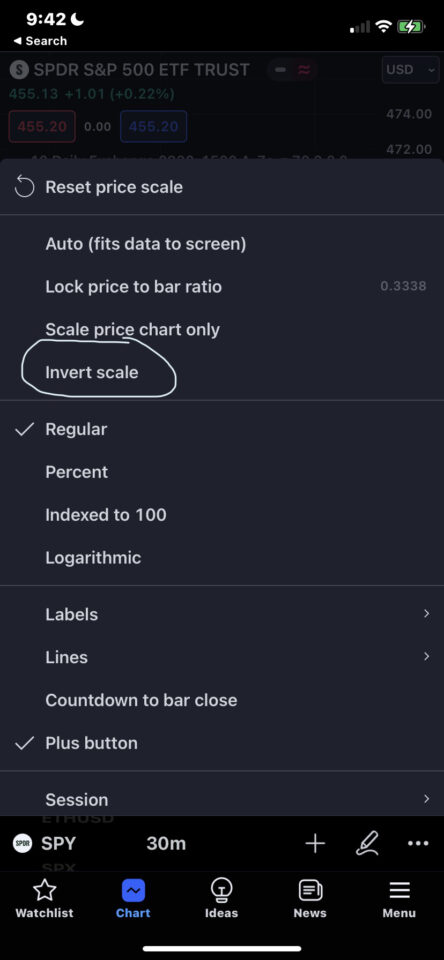
How to Invert Chart on the TradingView Mobile App
To invert the chart in the TradingView mobile app, you need to:
- Tap on the chart icon at the bottom of the screen
- Tap on the gear icon at the bottom right corner
- Toggle on the “Invert Scale” option
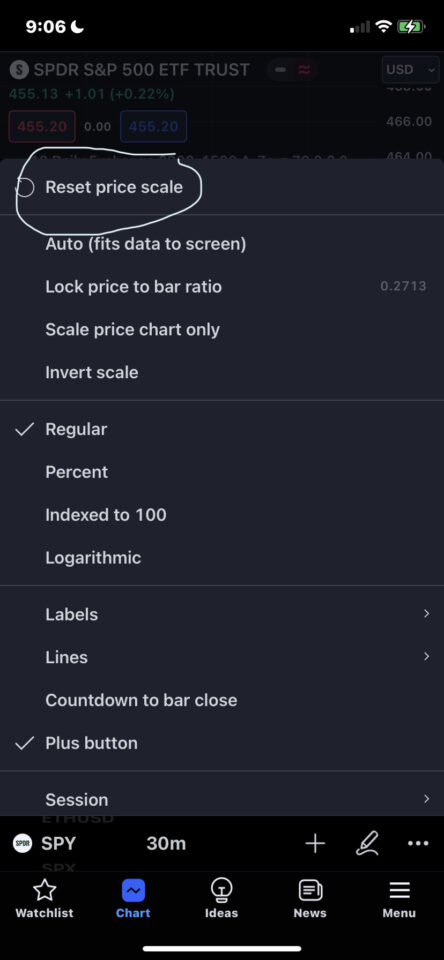
How to Reset Your Chart on the TradingView Mobile App
To reset the chart on the TradingView mobile app, you need to:
- Tap on the chart icon at the bottom of the screen
- Tap on the gear icon at the bottom right corner
- Tap reset price scale
How to Add a Script on the TradingView Mobile App
Currently, you cannot use the Pine editor to add scripts in the TradingView mobile app.
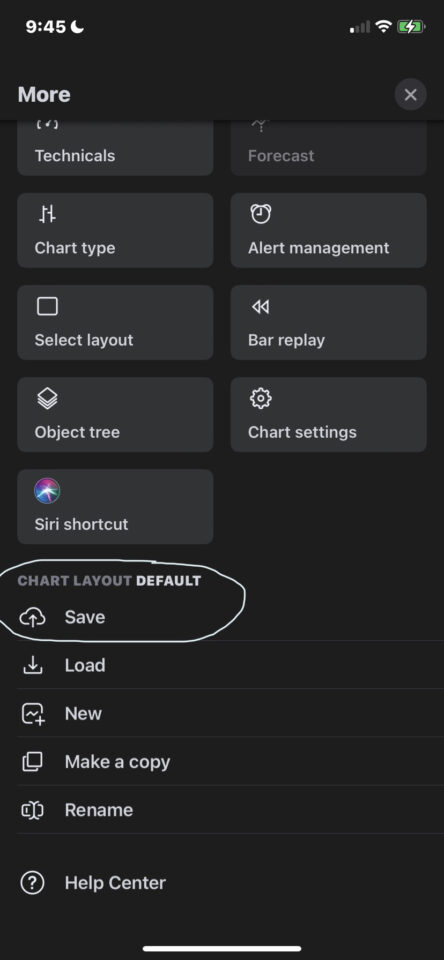
How to Save Charts on the TradingView Mobile App
To save charts on the TradingView mobile app, you need to:
- Tap on the chart icon at the bottom of the screen
- Tap on the three dots in the bottom right corner
- Scroll down and choose one of these options:
- Save: To save your current chart layout
- Load: To load a previously saved chart layout
- Create new: To create a new chart layout
- Make a copy: To make a copy of your current chart layout
- Rename: To rename your current chart layout
How to Delete Alerts on the TradingView Mobile App
To delete alerts on the TradingView mobile app, you need to:
- Go to the symbol with the alert and find it on the chart
- Tap it and tap the X
- Press yes to delete the alert
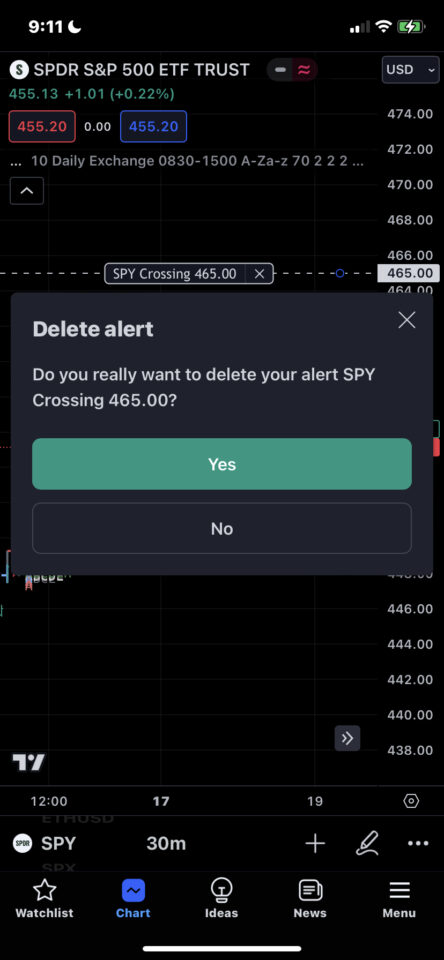
Push notifications are one of the strongest reasons to use the app over the web; here is how to set alerts on the TradingView mobile app directly from your phone.
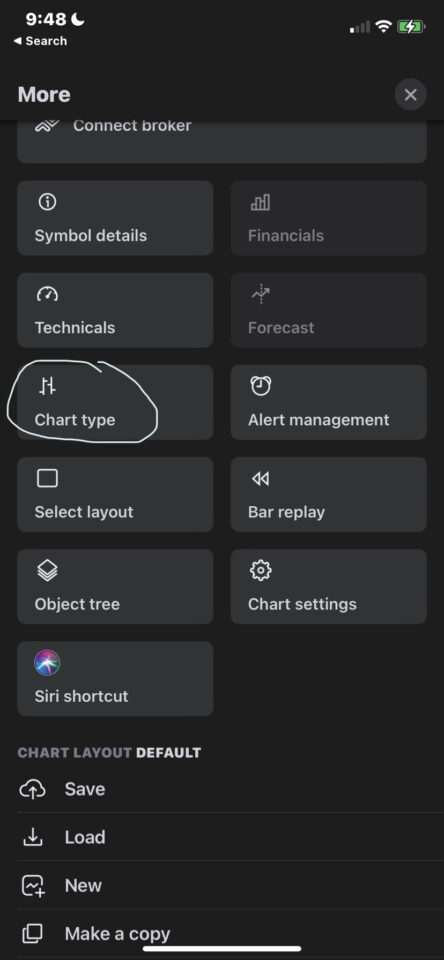
How to Change to Candlesticks on the TradingView App
To change to candlesticks on the TradingView app, you need to:
- Tap on the chart icon at the bottom of the screen
- Tap on the three dots in the bottom right corner
- tap chart type and switch them to candles
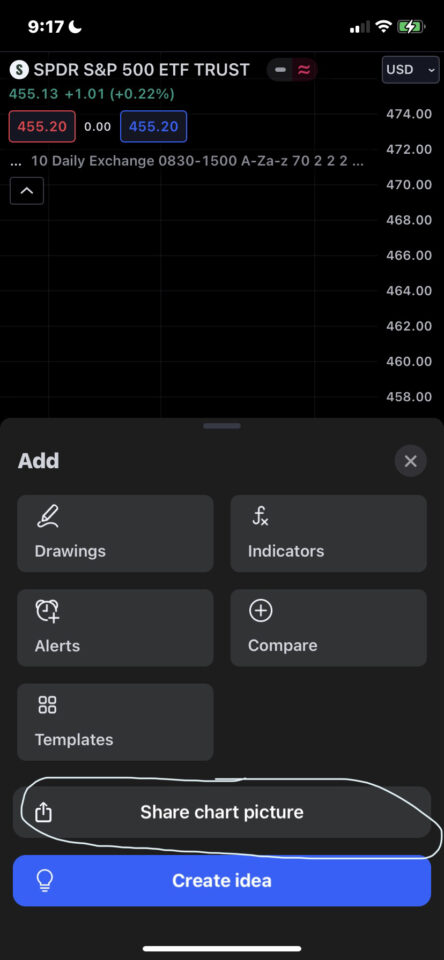
How to Share a TradingView Chart From the App
To share your chart on the TradingView mobile app, you need to:
- Make sure you are on the chart tab
- Tap the plus icon at the bottom right corner
- Tap share chart picture
However, there is not currently a way to share a chart from the TradingView mobile app using a link.
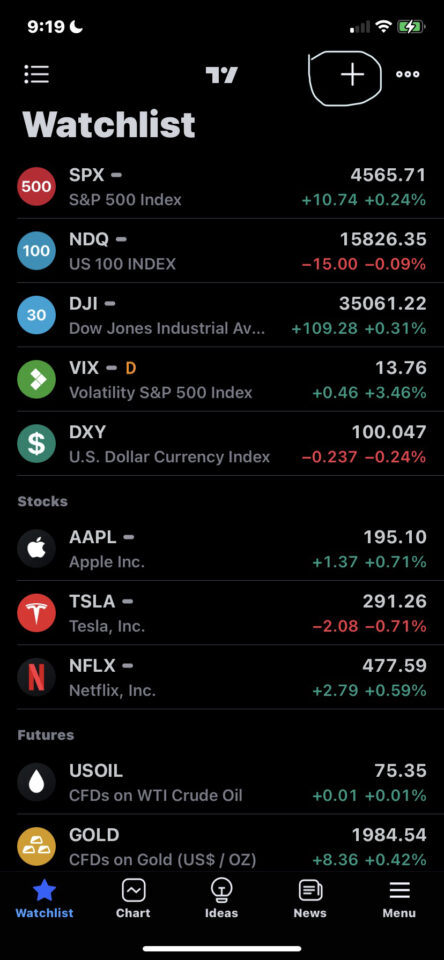
How to Add Symbols to a Watchlist on The TradingView Mobile App
To add a symbol to your TradingView watchlist on the app, you need to:
- Tap the watchlist tab in the bottom left corner
- Tap the watchlist you want to add to
- Tap the plus icon at the top right corner
TradingView Mobile App | Bottom Line
We hope you enjoyed this article and learned something new about the TradingView app. As you can see, the TradingView app is a powerful and convenient way to access the TradingView platform from your mobile device.
One more setting worth configuring before you start trading from your phone is your chart time zone. The mobile app uses the same time zone preference as the desktop platform, so set it once and your intraday levels will line up no matter where you open your charts.
The app also supports the full paper trading engine. You can paper trade from the mobile app using the same $100,000 virtual account as the desktop platform, with market, limit, stop, and bracket orders all available from the Order Ticket.
How to Scan for Stocks & Review Trades on Your Phone
The TradingView mobile app is unbeatable for checking live charts, managing watchlists, and receiving push alerts on the go, but building multi-condition stock screens on a small phone screen is frustrating. Instead of pinching and zooming through complex screener filters on mobile, bookmark our free pre-built stock scanners hub on your phone’s browser. Every scanner is mobile-friendly and pre-configured for proven setups including the VCP Scanner, Daily Pivot Breakout Scanner, Stage 2 Stocks Screener, and Minervini Trend Template Scanner. The app follows the same chart ideas as the desktop workspace, which our TradingView tutorial walks through.
Skip building complicated screener filters on a small screen. Open our pre-built stock scanners on your phone to see recent VCP, Stage 2, CAN SLIM, Darvas Box, and RSI divergence matches, then tap the tickers into your TradingView mobile watchlist.
Logging trades manually in a spreadsheet on your phone never lasts. The Financial Tech Wiz Trading Journal imports your trades automatically through Broker Auto Sync from 25+ brokers, adds today’s live and preliminary results from pre-built stock scanners on paid plans, and tracks your win rate and equity curve from any mobile browser. Free to start. Broker Auto Sync, the AI Trading Coach and today’s live and preliminary scan results are on paid plans: $19/month or $119/year.
Frequently Asked Questions
Is the TradingView mobile app free?
Yes, the TradingView mobile app is free to download on both iPhone (iOS) and Android, and it works with a free TradingView account. If you upgrade to Essential, Plus, Premium, or Ultimate, your paid features (extra indicators per chart, multi-chart layouts, custom intervals, and expanded price alerts) unlock automatically inside the mobile app as well. You can also start a 30-day TradingView free trial to test paid mobile charting features risk-free.
Do TradingView charts and drawings sync between desktop and the mobile app?
Yes. As long as you are signed into the same TradingView account and have Autosave enabled on your chart layout, your trendlines, fib retracements, indicators, watchlists, and server-side alerts sync between desktop and the mobile app automatically.
Can you paper trade or connect a broker on the TradingView mobile app?
Yes. You can connect supported live brokers or TradingView Paper Trading directly inside the mobile app by tapping the three-dot menu at the bottom right of the chart and selecting your broker or Paper Trading, then placing market, limit, or stop orders from the mobile order ticket.
Financial Tech Wiz / Free resources
Build a clearer picture of your trading.
Start with a free journal account. Keep your trades organized, review your results, and build a consistent review routine.
Your free journal account includes the template and tools by email:
- Free Google Sheets and Excel trading journal template
- Indicators, watchlists, and scanners
- Access to the free trading community
Ready for automatic trade tracking? Explore the Financial Tech Wiz Trading Journal.
Free journal. No card needed.